Dialer
The Dialer is a power dialer built for sales teams. Dial up to 4 contacts simultaneously, record and transcribe calls, detect voicemail, and track performance with real-time analytics.
Using the Dialer
Follow these steps to go from a contact list to a live call.
1. Open the Dialer and start a session
- Go to Engage → Dialer
- Click New Session (top right)
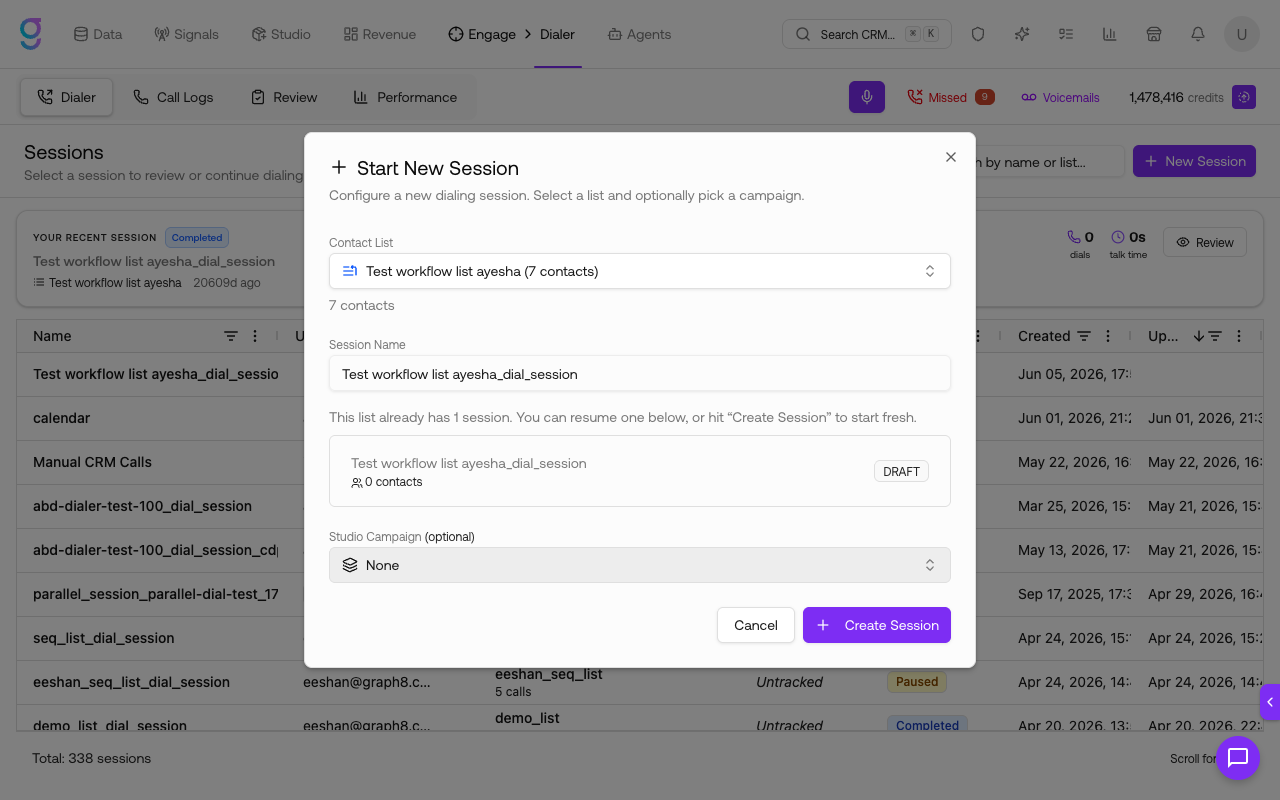
- In Start New Session, configure:
- Contact List — search and select the list you want to call. The contact count appears below
- Session Name — auto-fills from the list name; edit it if you like
- Studio Campaign (optional) — link the session to a campaign so calls roll up into campaign reporting
- Click Create Session
2. Configure the session
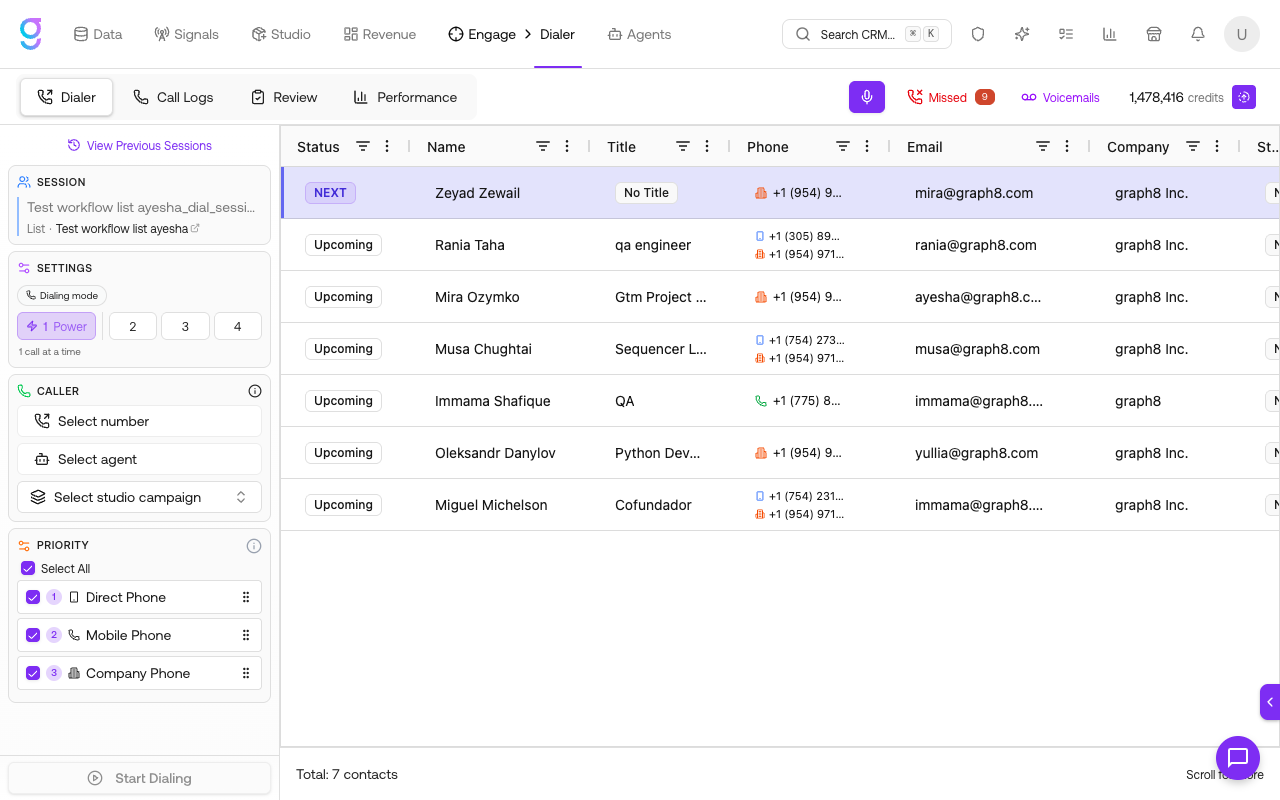
The session view opens with your contact queue on the right and the settings sidebar on the left.
- Dialing mode — choose how many contacts to call at once:
- 1 (Power) — one call at a time
- 2, 3, or 4 (Parallel) — dial multiple contacts simultaneously to reach more people per hour
- Select number — pick the phone number to call from (see Phone Number Selection)
- Select agent — attach a Twin agent that powers the call (see Add a Twin Agent below)
- Select studio campaign (optional) — attribute calls to a campaign
- Priority — set the order phone numbers are dialed in (see Phone Priority and Multi-Number Dialing)
3. Start dialing and handle the call
- Click Start Dialing at the bottom of the sidebar
- When a prospect answers, the call drawer opens automatically with contact info, a live transcript, and the call outcome panel
- After the call, select a disposition (and an optional sentiment + note), then Log & Dial Next to advance
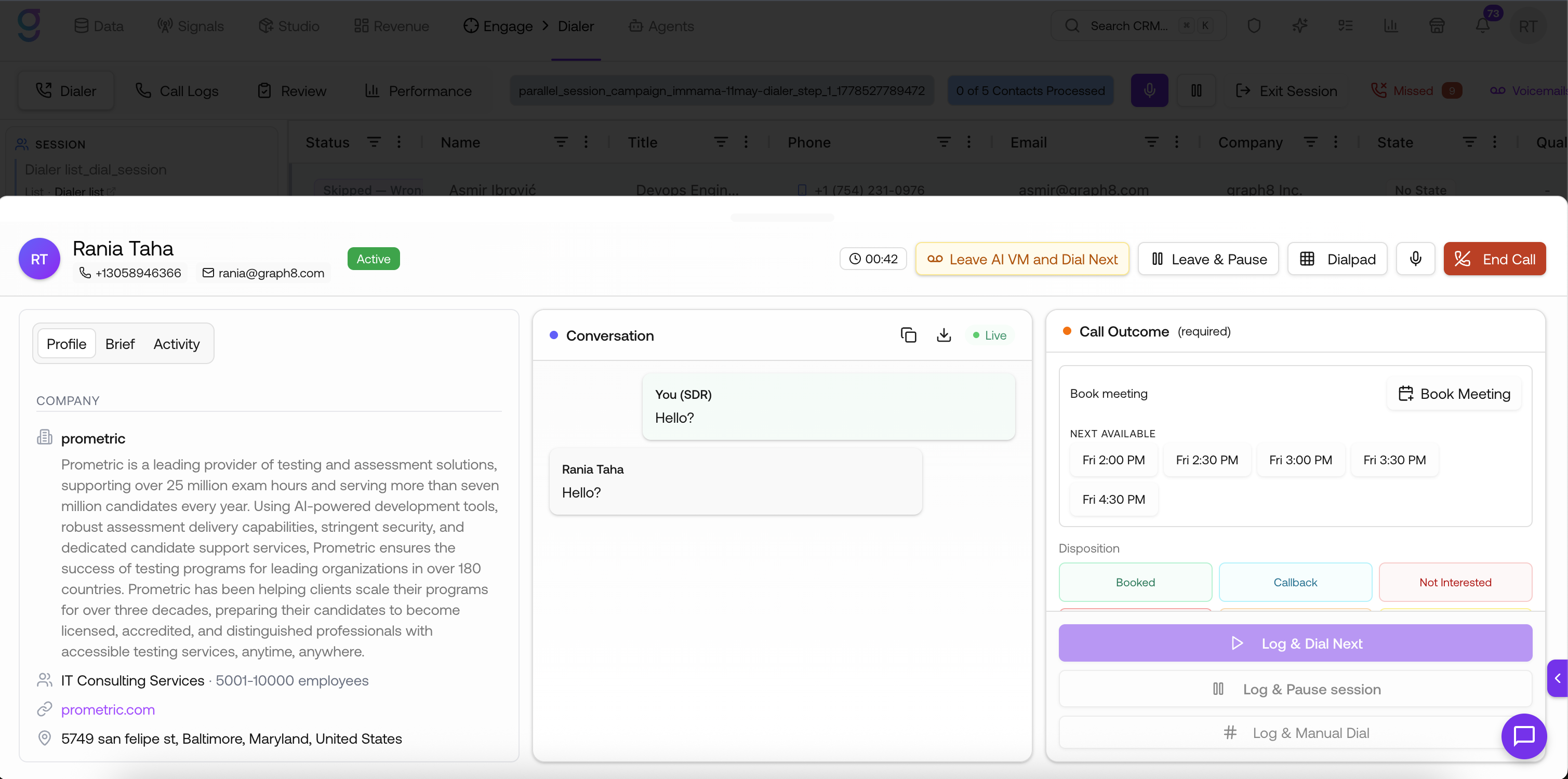
From the call drawer you can also Book Meeting directly, open the Dialpad to send DTMF tones, Leave AI VM and Dial Next to drop a voicemail, or Leave & Pause.
Session controls
You manage a running session from the header and the sidebar:
- Mute / unmute — toggle the microphone icon in the session header to mute or unmute yourself
- Pause Session — stop dialing and resume later from where you left off (sidebar)
- Next Batch — in parallel mode, dial the next set of contacts once the current batch finishes
- Exit Session — leave the session entirely (top right). Active and paused sessions can be resumed later from the sessions list
During a live call, the call drawer adds: End Call to hang up, Mute, Dialpad to send DTMF tones, Leave & Pause, Leave AI VM and Dial Next to drop a voicemail, and Book Meeting.
Check session analytics
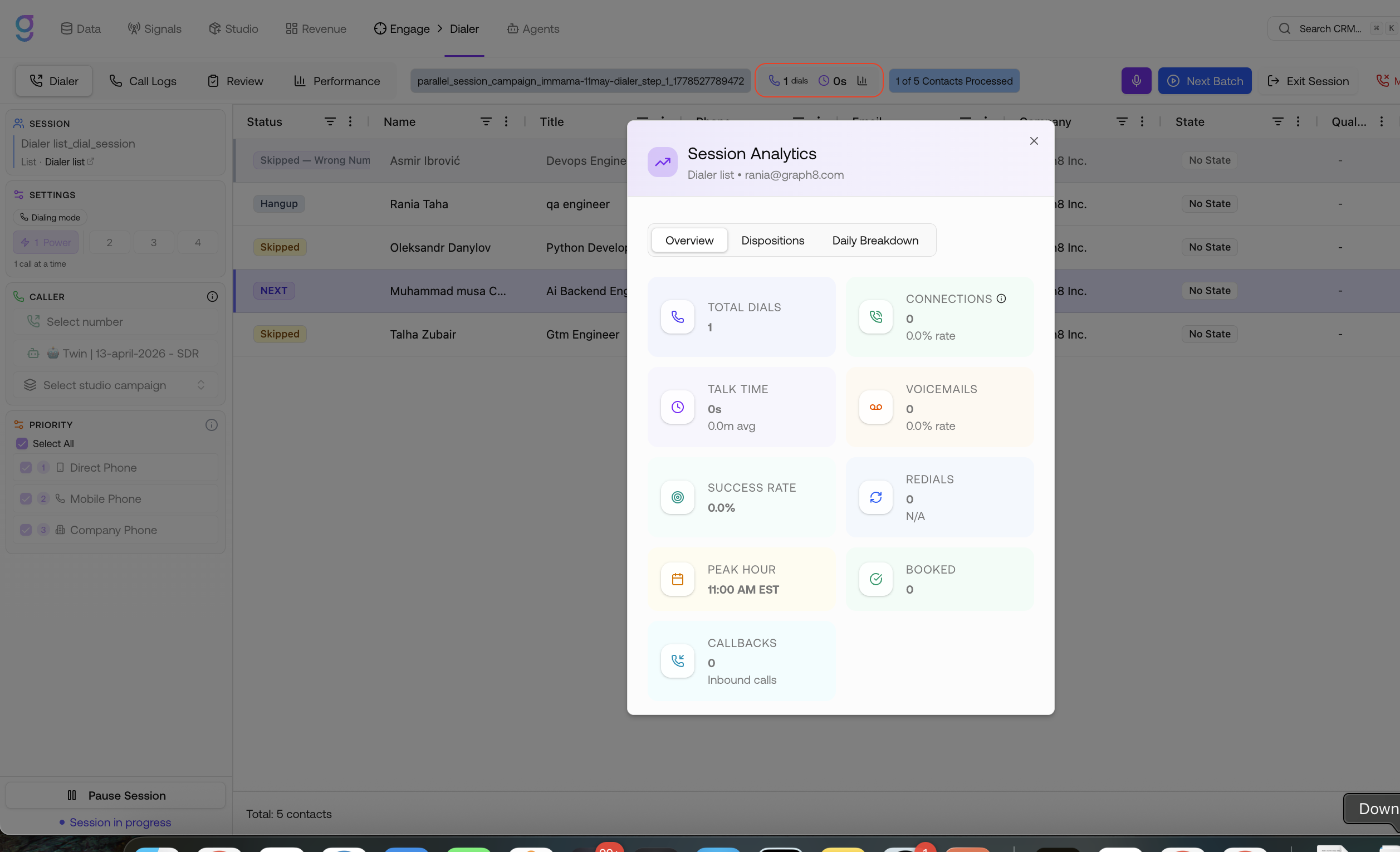
Click the dials / talk-time chip in the session header (the stats with the chart icon) to open Session Analytics for the current session. It has three tabs:
- Overview — total dials, connections and connection rate, talk time, voicemails, success rate, redials, peak hour, booked, and callbacks
- Dispositions — the breakdown across every disposition
- Daily Breakdown — activity by day
Add a Twin Agent
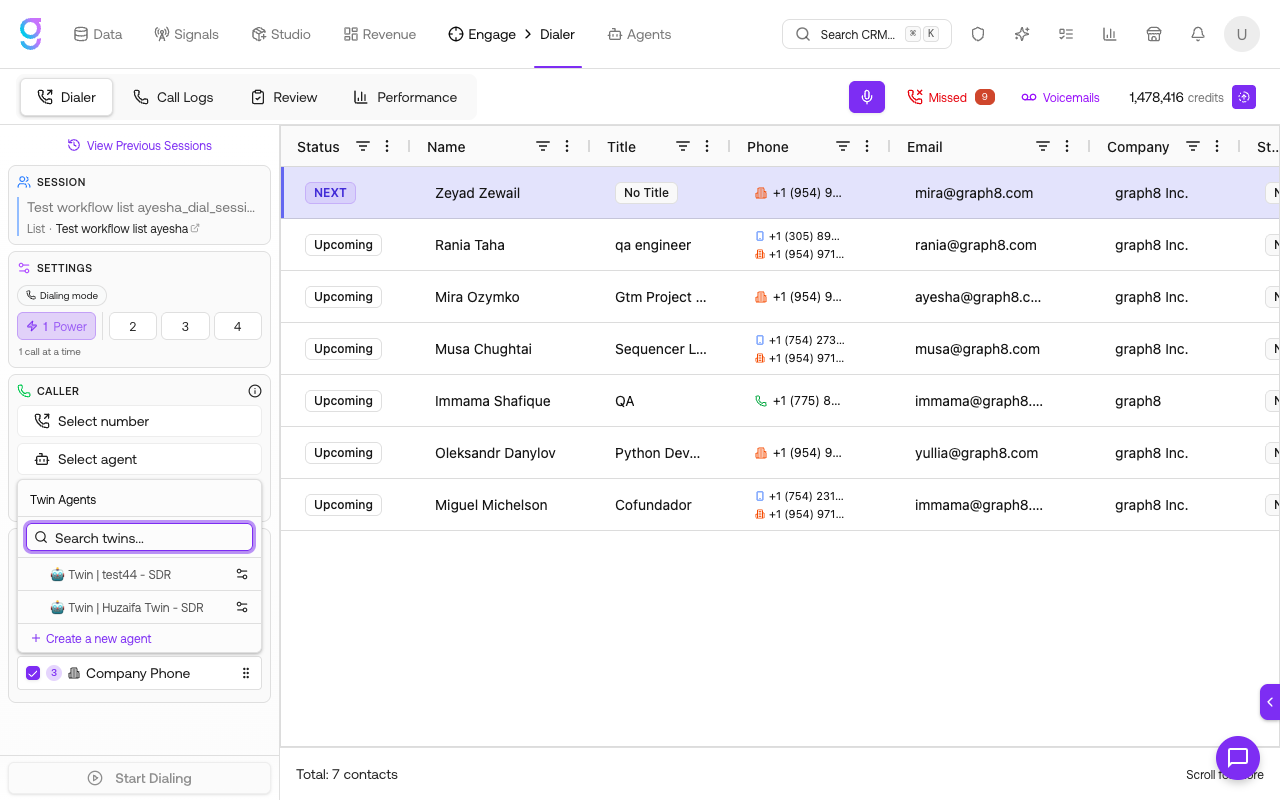
Every dialing session runs with a Twin agent — the AI voice agent attached to the call. Select one under CALLER → Select agent before you start dialing.
- In the session sidebar, click Select agent
- Search your Twin Agents and pick one, or click the gear to Configure an existing agent
- If you don’t have a twin yet, click Create a new agent at the bottom of the picker — this opens the twin creation flow (Agents → New → Twin) in a new tab
For the full walkthrough of building a twin — persona, voice cloning, identity, and skills — see Voice Agents →.
Edit Contact Data from the List
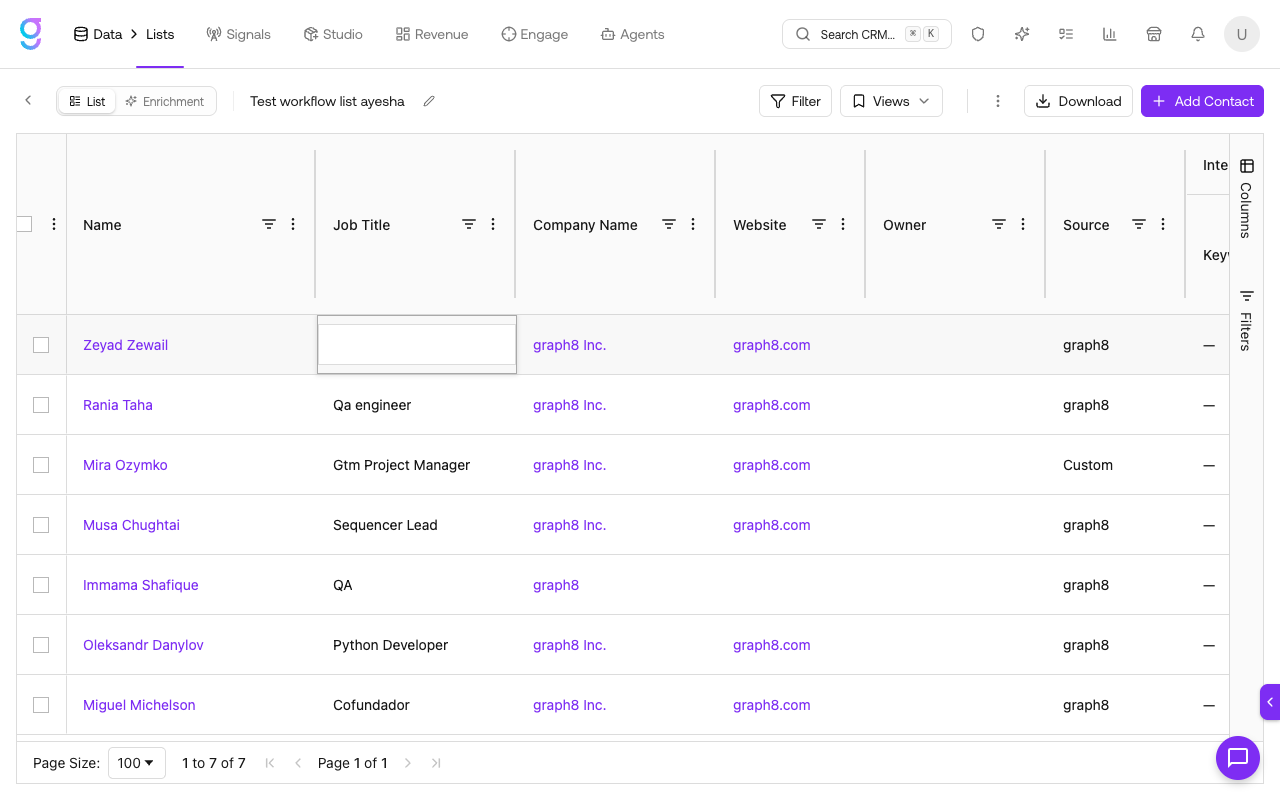
If a contact is missing a phone number, job title, or any other field, an SDR can edit it directly in the list without leaving the dialer.
- In the session sidebar, under SESSION, click the list link next to List ·. graph8 opens that list in a new browser tab so your session stays intact
- In the list, double-click the cell in the column you want to fill — for example Job Title or a phone field
- Type the new value and press Enter to save (or Esc to cancel)
Parallel Dialer
Parallel dialing calls several contacts at once so you spend more time talking and less time listening to ringing. This section explains how it works and how to use it well.
How it works
- You pick a batch size — 1 (Power) or 2–4 (Parallel) in the Dialing mode setting.
- graph8 dials the whole batch at once — for a batch of 4, four contacts ring simultaneously.
- The first live answer wins. The moment a real person answers, graph8 connects them to you and instantly hangs up the other ringing calls, so no one is left picking up to silence. The call drawer opens automatically for the connected contact.
- Voicemail and phone trees are handled for you. graph8 detects when a call reaches voicemail or an IVR / auto-attendant and — based on your settings — either skips it or drops your voicemail message. Those calls never tie up your line waiting for the batch. See Voicemail.
- No wasted or duplicate dials. The same contact is never called twice in a session, and DNC / No Phone contacts are skipped automatically.
- The next batch is one click away. When a batch finishes, click Next Batch to dial the next set. Contacts that didn’t connect are automatically retried on their next phone number — see Phone Priority and Multi-Number Dialing.
Choosing a batch size
More lines mean more people reached per hour — but also a higher chance that two prospects answer at nearly the same moment, in which case only the first is connected and the other is dropped. Match the batch size to the list:
| Mode | Best for | Trade-off |
|---|---|---|
| 1 (Power) | Warm leads, callbacks, VIP accounts | Most personal, never drops a live prospect — but lowest volume |
| 2–3 (Parallel) | Everyday prospecting, balanced lists | Good reach with a low chance of dropping an answered call |
| 4 (Parallel) | Cold lists with low pick-up rates, peak hours | Highest volume — but the greatest chance of dropping a simultaneous answer |
Get the most out of a session
- Set up voicemail drops and enable skip voicemails so unanswered calls still leave your message and don’t waste your time — see Voicemail.
- Order your phone priority (Direct → Mobile → Company) so the most reachable number is tried first, and multi-number contacts are automatically retried — see Phone Priority and Multi-Number Dialing.
- Have your Twin agent and script ready before you start — parallel dialing connects fast, so there’s no time to fumble. See Add a Twin Agent.
- Call during peak hours — typically 10am–12pm and 2pm–4pm local time — when pick-up rates are highest.
- Pause instead of exiting if you need a break; a paused session resumes exactly where you left off, keeping your queue, redial filter, and cursor.
Phone Priority and Multi-Number Dialing
A contact can have up to three phone numbers — Direct Phone, Mobile Phone, and Company Phone. The PRIORITY section of the sidebar controls the order they’re tried.
- Reorder — drag the phone types to set which number is dialed first
- Exclude — uncheck a phone type to skip it (at least one must stay active)
- Automatic retry — if a number doesn’t connect, the dialer automatically retries the contact with the next number in priority order on the following batch
- No duplicate dials — the same number is never dialed twice for the same contact within a session
The default order is Direct Phone → Mobile Phone → Company Phone.
Redial by Disposition
When you re-run a list, choose which past dispositions you want to redial. The redial filter lives in the Dialer sidebar and applies to the active list.
| Filter | Typical Use |
|---|---|
| Voicemail | Try again — they didn’t pick up last time |
| No answer / Hangup | Same as voicemail; new attempt at a different time of day |
| Callback | Honor scheduled callbacks |
| Gatekeeper | Try again to get past the gatekeeper |
| All dispositioned | Full revival pass — combine with a date filter to age the list |
The dialer skips dispositions you don’t select (for example Booked, DNC, Not interested) so you don’t burn calls on contacts already resolved. The redial state is persisted with the session — pausing and resuming preserves your filter and cursor.
Manual Dialer
You can make ad-hoc calls outside of a dialing session using the manual dialer.
Click Manual Dial at the bottom of the dialer sidebar to open the keypad, enter a phone number, and click Start Dialing. The number you call from is shown below the keypad. You can also expand Add contact details to attach a name and company to the call.
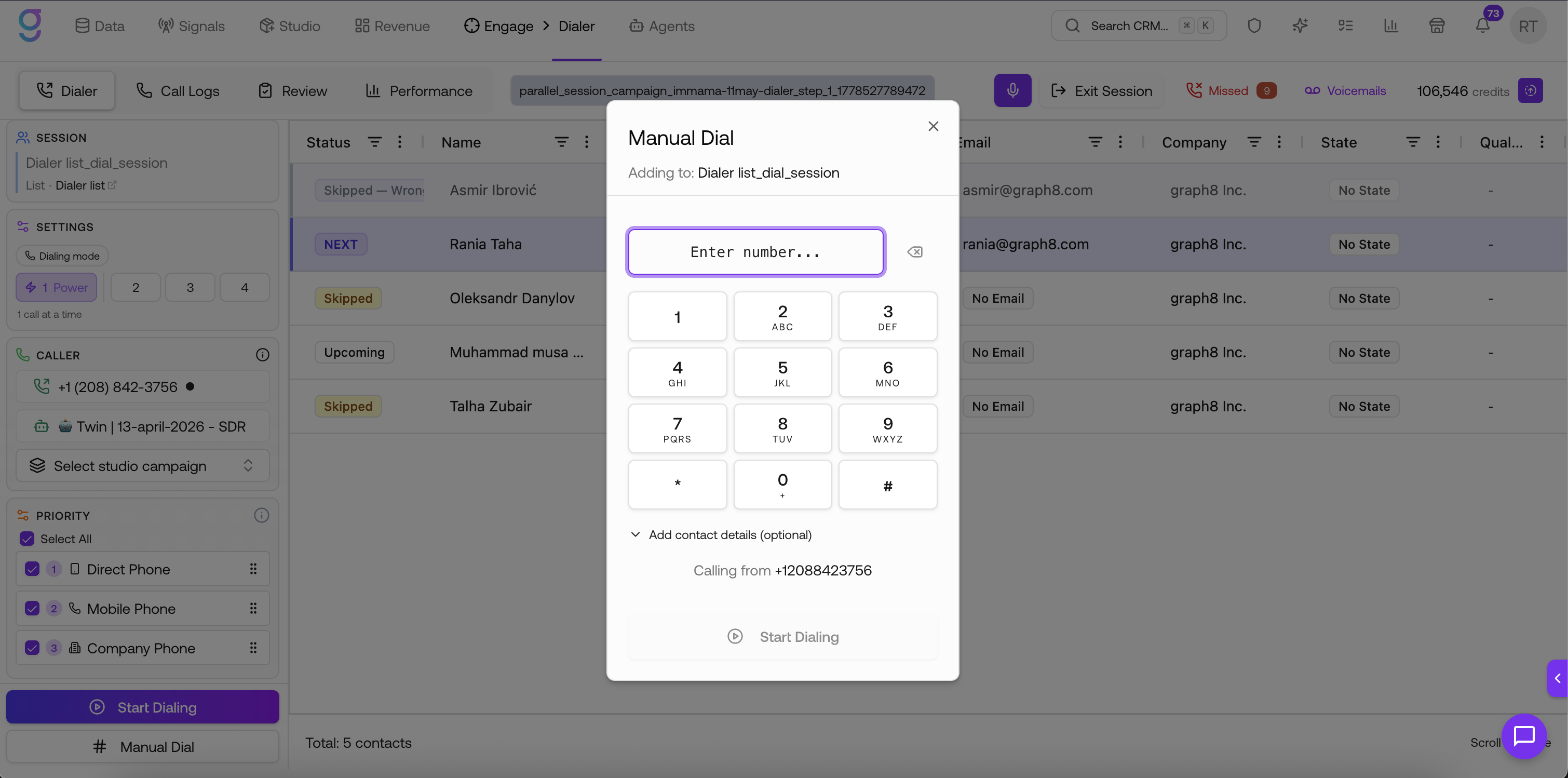
Manual calls:
- Are not tied to a sequence
- Can be used for quick outreach or follow-ups
- Are still logged as activities
Session Statuses
| Status | Meaning |
|---|---|
| Active | Session is running, calls in progress |
| Paused | Session paused — can resume |
| Completed | All contacts in the session have been dialed |
| Failed | Session encountered an error |
Call Statuses
| Status | Meaning |
|---|---|
| Dialing | Call is being placed |
| Ringing | Phone is ringing |
| Active | Call connected, conversation in progress |
| Automation | Voice AI is handling the call |
| Hangup | Call ended |
| Failed | Call could not connect |
Phone Number Selection
The phone number dropdown shows numbers assigned to you. Use the search box to find a specific number by label or digits. Numbers purchased for the dialer and numbers provisioned for AI voice agents are managed separately.
If you don’t have a number yet, the dropdown includes a link to get one. For the full walkthrough of buying and assigning a number, see Phone Numbers → in Settings.
Inbound Calls
Handle incoming calls in real time:
- Real-time notifications — SDRs receive instant alerts for inbound calls
- SDR online status — the system tracks which reps are available
- Call claiming — SDRs can claim or decline inbound calls
- Voicemail fallback — when no SDR is available, callers are routed to voicemail
- Pending queue — inbound calls queue until an SDR is available
Incoming Call Notifications
When an inbound call is received, a notification appears showing the caller’s phone number.
If the number matches an existing contact, graph8 also displays:
- Contact name
- Company
You can choose to answer or dismiss the call directly from the notification.
Call Recording & Transcription
Every call is automatically recorded and transcribed:
- Recording — saved to cloud storage, accessible from call results
- Transcription — AI-powered speech-to-text for full call transcripts
- Call summaries — AI generates a summary of the conversation
- Call evaluation — AI grades call quality for coaching
Voicemail
graph8 detects voicemail and handles it automatically:
- Voicemail detection — identifies when a call reaches voicemail
- Voicemail drops — leave a pre-recorded message automatically
- Greetings — set voicemail greetings at the org level or per agent
- Transcription — voicemail recordings are transcribed
- Read/unread tracking — track which voicemails your team has reviewed
Dispositions
After each call, the SDR (or system) selects a disposition:
SDR-Selected
| Disposition | Meaning |
|---|---|
| Booked | Meeting or call scheduled |
| Callback | Contact wants a callback (sub-sentiments: has budget, interested, hesitant, not ready, interested but wrong person) |
| Not interested | Contact explicitly declined |
| DNC | Do Not Call (sub-sentiments: legal DNC, request DNC, harassed) |
| Not ICP | Contact doesn’t match your ideal customer profile |
| Has solution | Company already has a competing solution |
| Gatekeeper | Speaking with a gatekeeper (sub-sentiments: will pass through, callback scheduled, won’t pass) |
| Wrong number | Invalid or wrong phone number |
| Left org | Contact no longer works at the company |
System-Set
| Disposition | Meaning |
|---|---|
| Voicemail | Call reached voicemail |
| Hangup | Call disconnected (by contact, by SDR, or no answer) |
| No voice | Failed to connect |
| Not answered | Call dropped before connecting |
| Failed | Call failed to complete |
Voice AI
AI-powered voice features for smarter calling:
- Voice agents — AI agents that can handle calls autonomously
- Text-to-speech — natural-sounding AI voices for automated calls
- Voice cloning — clone a voice for personalized outbound
- Call scripts — guided scripts for SDRs and AI agents
- SDR training agent — practice calls with an AI that simulates prospects
Analytics
Track dialer performance in real time:
SDR Performance Dashboard
| Metric | What It Shows |
|---|---|
| Dials | Total calls made |
| Connections | Calls answered by a human (excludes voicemails) |
| Connection rate | Human-answered calls as a percentage of total dials (voicemails not counted as connections) |
| Voicemail rate | Percentage of calls that reached voicemail |
| Talk time | Total minutes on connected (human-answered) calls |
| Average call duration | Mean length of connected calls - voicemail duration excluded |
| Disposition breakdown | Distribution across all dispositions |
| Success rate | Meetings booked per connected (human-answered) call |
| Redial metrics | Redial attempts and success rates |
| Peak calling hours | Best times of day for connections |
Score Filtering
Filter graded calls by quality score using the Min Score and Max Score fields. Only calls within the specified range appear in the results. Calls under 30 seconds and non-conversation dispositions are excluded from scoring.
Team Leaderboard
Compare SDR performance across your team with daily, weekly, and monthly views. Rankings by total calls, connections, and meetings booked.
Call Targets
Set targets at the org level or per SDR for daily call and meeting goals.
Campaign Linkage
Dialer sessions can be linked to a campaign so call activity rolls up into campaign-level reporting.
- Link a session — when creating or editing a dialer session, select a campaign to associate it with
- Attribution — every call placed during that session is attributed to the linked campaign
- Aggregated analytics — call metrics (dials, connections, dispositions, talk time) appear in the campaign’s performance view alongside email and LinkedIn data
- Back to sessions — while in a campaign-linked session, use the back button to return to the sessions list without losing context
This gives managers a single view of all outreach activity per campaign, across channels.
Sequencer Integration
The Dialer integrates directly with the Sequencer:
- Manual Dialer steps — add a Manual Dialer step to any sequence
- Call results — linked back to the sequence step and contact
- Campaign attribution — calls from sequences track back to the originating campaign through the session link
Next Steps
- Voice Agents → — Create the Twin agent that powers your calls
- Inbox → — View call results and transcripts
- Meetings → — Review booked calls alongside meeting context
- Sequencer → — Add dialer steps to sequences
- Appointments → — Manage booked meetings