Campaigns
Campaigns in Studio take you from idea to execution. The AI generates campaign concepts, writes all the copy and collateral, and pushes the finished sequence directly into Engage for outreach.
Campaign Overview
A campaign brings together all the documents, steps, and insights needed to launch and run your go-to-market strategy.
Each campaign has a unique URL, so you can share it directly with your team. Opening the link takes you to the exact campaign view, even after refresh.
This makes collaboration and review easy across teams.
Campaign Ideation
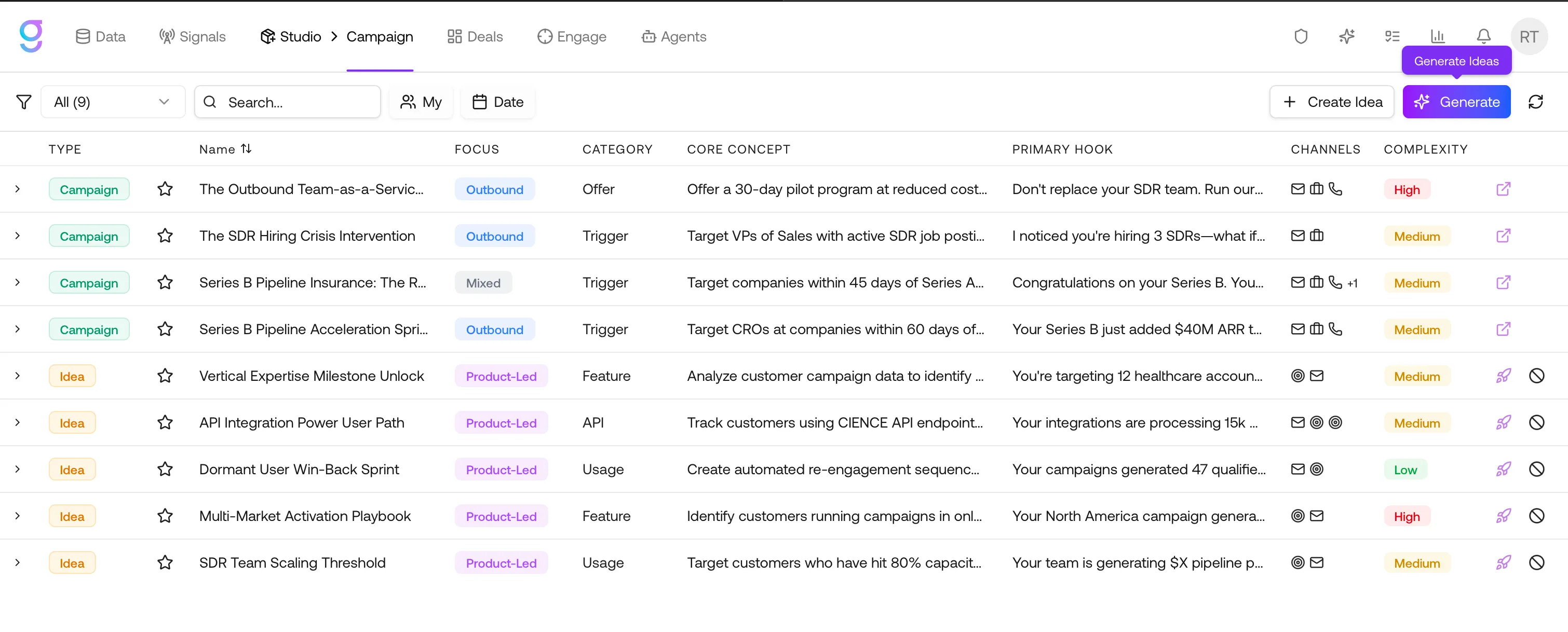
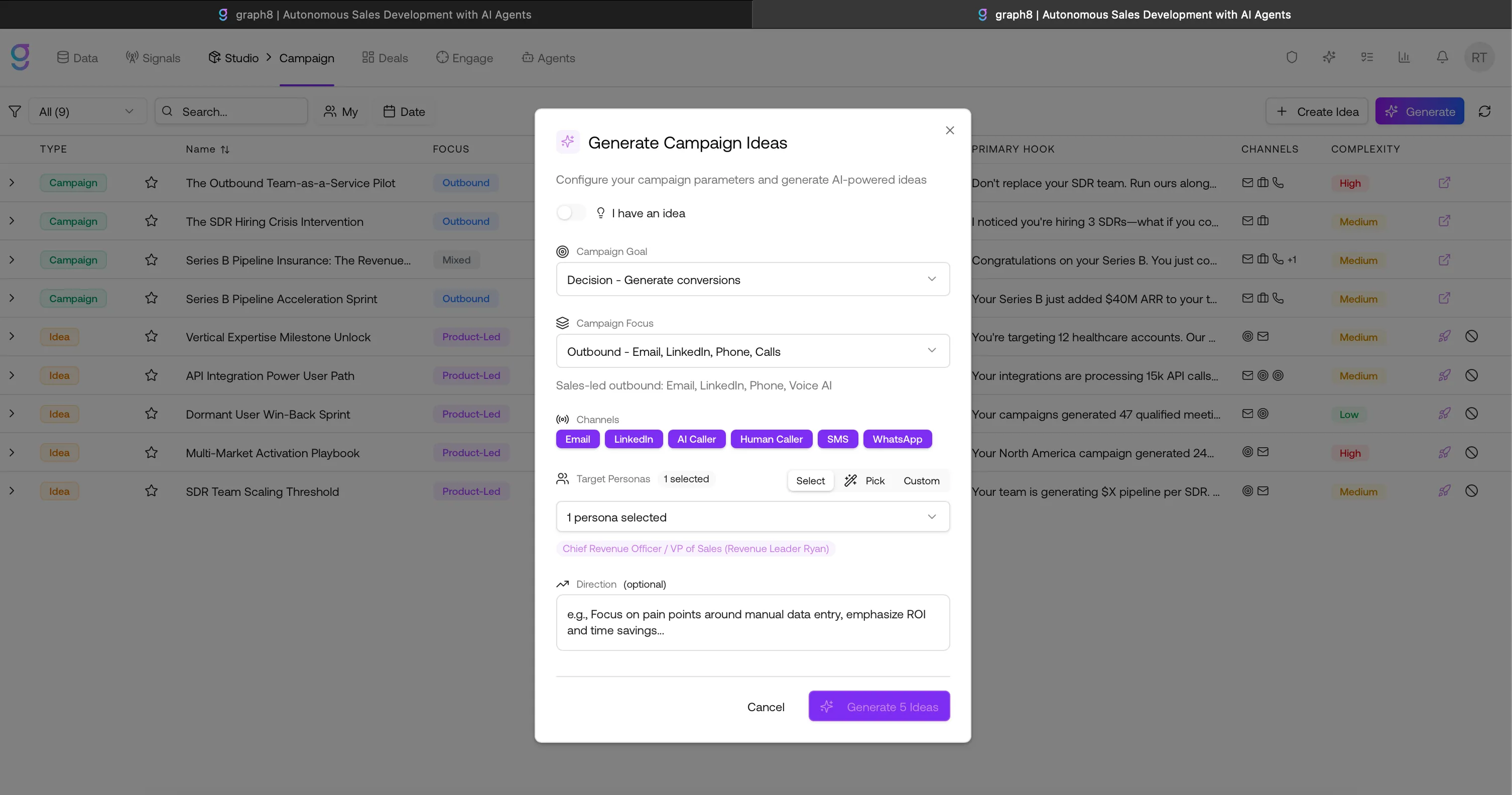
Start by letting the AI generate campaign ideas based on your global context and intelligence.
- Go to Studio → Campaign
- Click Generate Ideas
- The AI produces ranked campaign concepts, each with:
- Campaign name and category
- Core concept and primary hook
- Secondary hooks and proof points
- Target channels (email, LinkedIn, phone, voice, etc.)
- Execution complexity and expected impact
Campaign Categories
Studio supports 40+ campaign types organized into groups:
| Group | Examples |
|---|---|
| Outbound | Social proof, trigger-based, ABM, event, authority, insight, persona-led |
| Partnership | Integration, marketplace, co-sell |
| Product-Led | API, freemium, usage-based, feature launch, developer |
| Lifecycle | Expansion, renewal, win-back, cross-sell |
| Co-Marketing | Reseller, affiliate |
| Thought Leadership | Community, podcast, authority building |
Select an idea to turn it into a full campaign.
Campaign Documents
When you create a campaign from an idea, Studio generates 20 documents automatically — everything your team needs to execute.
Core Strategy
| Document | Purpose |
|---|---|
| Campaign Brief | Strategic overview with structured data |
| Targeting & Routing | Audience targeting and routing rules |
| Messaging & Objections | Key messaging themes and objection handling |
Channel Copy
| Document | Purpose |
|---|---|
| Email Copy | Email sequences with subject lines, body, and CTAs |
| Email Prompt | Generation guidelines for email variations |
| LinkedIn Copy | Connection notes, DMs, and comment templates |
| Social Prompt | Social copy guidelines |
| Phone Call Script | Talking points for live calls |
| Voicemail Script | Voicemail drop scripts |
| Voice AI Script | Scripts for AI voice calls |
Shared Assets
| Document | Purpose |
|---|---|
| QA Rubric | Quality assurance checklist |
| Snippets | Reusable messaging blocks |
| Reply Templates | Frameworks for handling responses |
| Cadence Calendar | Timing and scheduling plan |
| Performance Tracker | Metrics and KPI tracking |
Operations
| Document | Purpose |
|---|---|
| Competitive Battlecard | Competitive positioning for reps |
| Meeting Prep Checklist | Sales enablement for booked meetings |
| Handoff Protocol | Team handoff procedures |
All documents are editable. Changes are versioned automatically.
Step Editor
The step editor lets you define the sequence of actions in your campaign:
- Steps — each step has a channel (email, LinkedIn, phone, voice AI), timing (day), and conditions
- Modes — email, connection note, DM, call, voicemail
- Personalization — set the personalization level (low/medium/high) per step
- Conditions — stop on reply, skip if already connected, etc.
- Reordering — drag steps to change the sequence
The step editor and channel copy documents stay in sync — when you edit steps, the corresponding copy documents update.
AI-Generated Step Content
When editing a campaign step, click Generate to have AI draft the content for you.
You can choose from different positioning angles — each generates a unique hook and messaging approach for the same step.
LinkedIn AI Instructions (HeyReach)
For LinkedIn steps powered by HeyReach, you can use AI Instructions mode.
Instead of using a fixed message, Copilot generates the message at send time using the contact’s latest data.
This results in more personalized outreach compared to static templates.
Push to Sequencer
Click Push to Sequencer to send your campaign steps to Engage.
The system maps each campaign step to a sequence step and creates the sequence automatically. The connection between campaign and sequence is preserved for tracking performance.
Campaign Dashboard
Every campaign gets an AI-generated dashboard with strategic insights:
- Readiness Score — overall campaign viability rating
- Strategic Assessment — confidence level and risk analysis
- Audience Profile — target persona breakdown and buying signals
- Messaging Summary — hook effectiveness and positioning angles
- Channel Strategy — multi-channel approach and timing coordination
- Risk Assessment — competitive threats, execution risks, and mitigations
The dashboard regenerates when you make significant changes to campaign documents.
Launching to Engage
When your campaign is ready:
- Click Launch on the campaign
- Studio previews the sequence that will be created in Engage
- Confirm — Studio pushes the campaign to the Engage sequencer
- The campaign runs as an active multi-step outreach sequence
The link between the Studio campaign and the Engage sequence is maintained, so you can trace performance back to the original campaign.
AI Suggested List Name
When building an audience, Studio automatically suggests a list name based on your targeting criteria.
The suggested name is pre-filled when saving the audience. You can edit it or accept it as-is.