Copilot
Studio Copilot is your AI assistant inside graph8. It helps you create, edit, and analyze campaign documents, answer questions, and guide your go-to-market strategy.
Copilot Overview
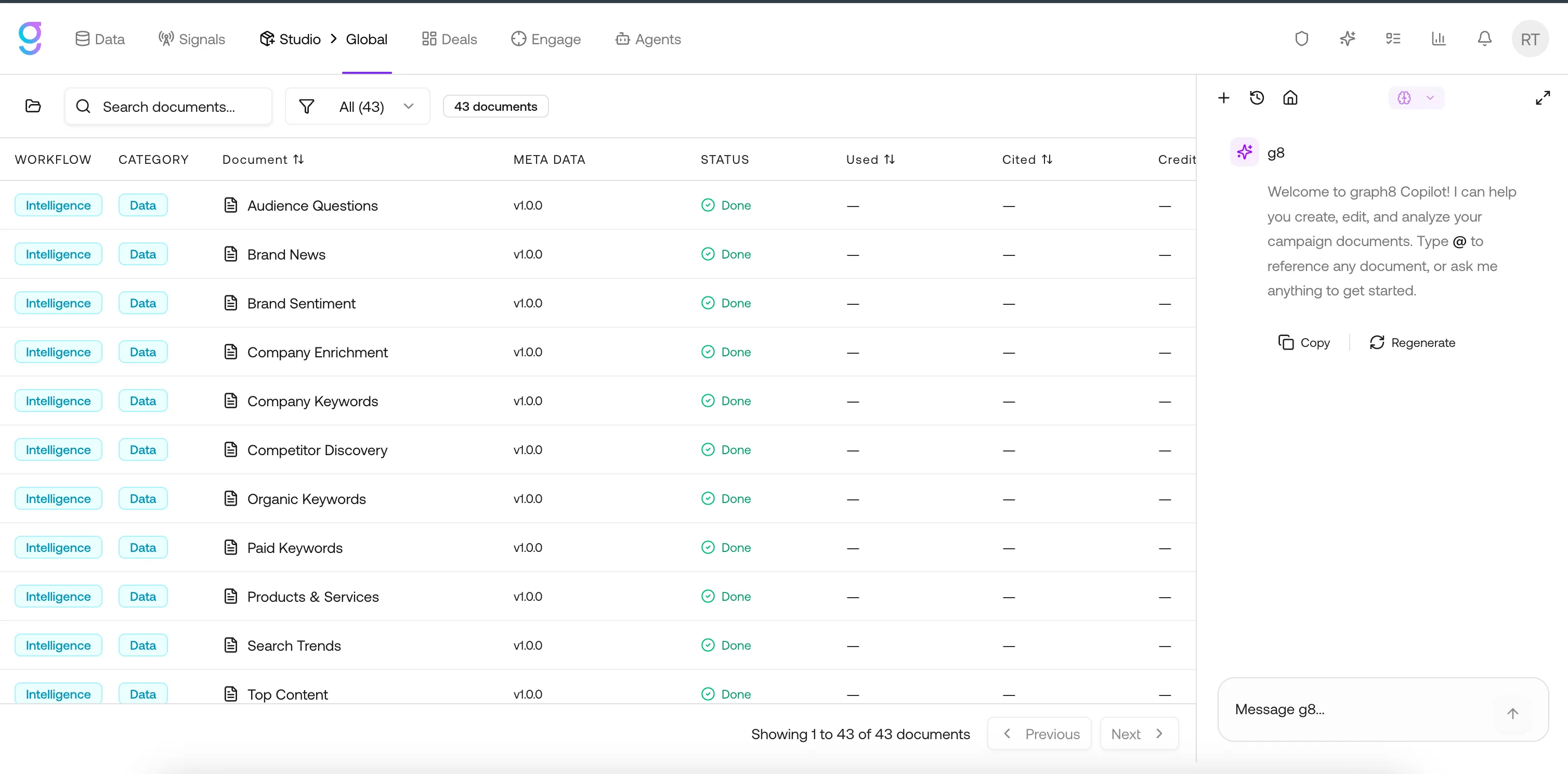
Copilot is available across Studio and automatically adapts based on what you are working on.
You can use Copilot in two modes:
- Global mode — ask general questions or get strategic guidance without opening a document
- Document mode — work inside a specific document with a specialized skill
Copilot also surfaces insights like meetings, activity, and suggestions through its dashboard view, helping you stay focused on what matters.
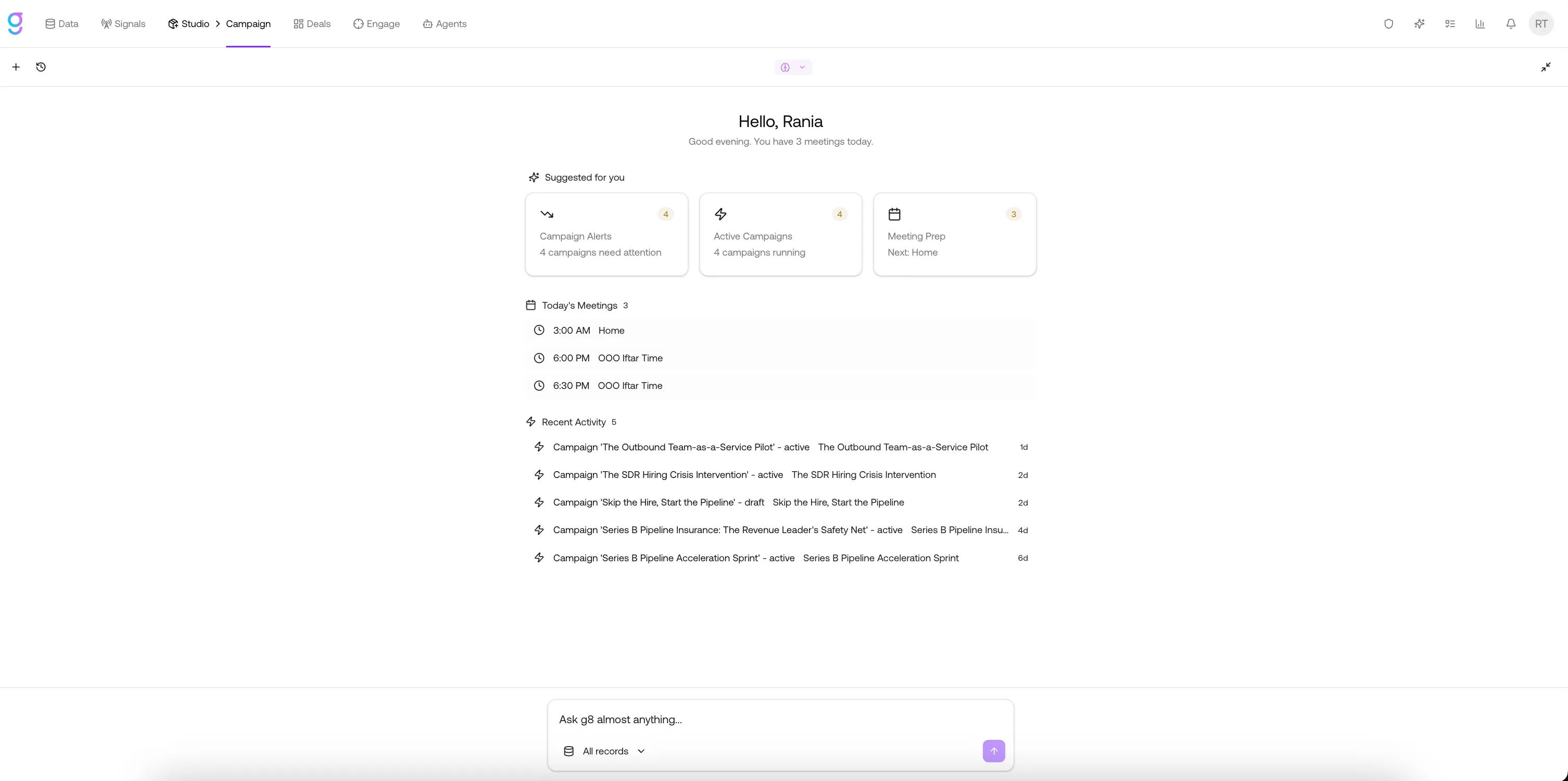
The dashboard provides an overview of your activity and priorities, while the Copilot panel allows you to interact with AI in real-time.
Copilot Memory
Copilot remembers context across your work in Studio.
As you interact with documents, campaigns, and actions, Copilot builds memory automatically — storing key decisions, preferences, and organizational context.
This means you don’t need to repeat instructions. Copilot uses past context to provide more relevant and consistent responses over time.
How Skill Routing Works
Studio Copilot automatically selects a specialist skill based on the document you are working on.
When you open a document and start chatting, Copilot detects the document type and switches to the matching skill. The active skill is shown in the Copilot panel header.
| When you open… | Copilot uses… |
|---|---|
| No document (global mode) | global-advisor - general GTM strategy |
| Brand Brief, Brand Voice, Style Guide | brand-strategist |
| Competitors, Positioning Matrix, Market Insights | market-analyst |
| Pains & Gains, Buying Journey | audience-expert |
| Offer Brief, Value Props, Proof Catalog, Pricing Matrix | offer-architect |
| Messaging House, Elevator Pitch, Narrative Templates | messaging-expert |
| ICP research documents | icp-expert |
| Persona documents | persona-expert |
| TAM research documents | tam-expert |
| Campaign Ideas | ideas-expert |
| Email Copy, Email Prompt | email-writer |
| LinkedIn Copy | linkedin-writer |
| Social Prompt | social-writer |
| Phone Scripts, Voicemail, Voice AI Scripts, Battlecard, Meeting Prep, Handoff Protocol | sales-enablement |
| Campaign Brief, Messaging & Objections, Targeting & Routing, QA Rubric, Cadence Calendar, Performance Tracker | campaign-copy-editor |
| Campaign Dashboard | readiness-expert |
| Landing Pages | landing-page-designer |
| Security Questionnaires | security-advisor |
Inline Field Editing
Structured document views — such as Email and LinkedIn — include a Sparkles button next to fields like subject line, opening line, CTA, and body.
Clicking a Sparkles button:
- Sends a focused “rewrite this field” request to Copilot
- Streams the suggestion directly into the chat
- Applies the accepted edit instantly — no copy-paste required
This allows you to improve specific parts of a document without rewriting everything.
Slash Commands
Type / in the Copilot chat to open the command menu.
- Most commands run instantly
- Some commands (like
/edit) require confirmation - Commands adapt based on the document you are working on
Editing Structured Documents
The /edit command works across multiple document types — not just email or LinkedIn.
You can:
- Select a specific section
- Run
/edit - Let Copilot rewrite or improve that section
Notifications
Copilot can run actions in the background — such as generating documents or completing tasks.
When an action is completed, you will see a notification in the bell icon at the top right.
Click the notification to review the result or jump to the relevant document.
Global Search
Press ⌘K (Mac) or Ctrl+K (Windows) to open global search.
You can search across:
- Campaigns
- Documents
- Contacts
- Companies
Select any result to navigate directly to it.
This helps you quickly access information without switching between pages.
Available Skills
| Skill | Best For |
|---|---|
| global-advisor | GTM strategy, campaign ideation, general questions |
| brand-strategist | Brand voice, tone, guidelines |
| market-analyst | Competitive analysis, market insights |
| audience-expert | Buyer psychology, pain points |
| offer-architect | Value propositions, pricing |
| messaging-expert | Core messaging and narratives |
| icp-expert | Ideal customer profiles |
| persona-expert | Persona development |
| tam-expert | Market sizing |
| ideas-expert | Campaign ideation |
| email-writer | Email copy |
| linkedin-writer | LinkedIn messaging |
| social-writer | Social content |
| sales-enablement | Scripts, battlecards, call prep |
| campaign-copy-editor | Campaign QA and editing |
| readiness-expert | Campaign readiness analysis |
| landing-page-designer | Landing page structure |
| security-advisor | Security questionnaires |
Actions & Saved Intelligence
Copilot can use insights generated from actions run on contacts and companies.
When you run an action (such as research or analysis), the result appears in a side panel. You can choose to save this result as intelligence.
Saved intelligence:
- Is attached to the contact or company
- Becomes available to Copilot automatically
- Improves future outputs and personalization
For example:
- Writing outreach → uses saved insights about the contact
- Generating campaigns → uses enriched company data
- Answering questions → uses stored intelligence
You don’t need to manually reference this data — Copilot uses it automatically.