Staging Workbench
The Staging Workbench is a dedicated workspace for preparing data before it enters your main lists. Import raw data from any source (CSV files, CRM exports, webhooks, or clipboard paste), then structure, enrich, and transform it in an isolated environment. When the data is ready, export it to a list with field mapping and optional auto-enrichment.
This is different from list enrichment, which fills in missing data on contacts that are already in a list. The workbench handles the step before that: getting raw, messy data into shape so it’s ready for your lists and campaigns.
How It Works
- Go to Data → Workbench
- Click Create Workbench and choose the entity type (contact or company)
- Import data using any supported source: CSV upload, CRM import, paste from clipboard, webhook, or manual entry
- Add columns to structure, enrich, and transform your data, including waterfall enrichment, AI columns, and formula columns
- Review the results in the grid, then click Map & Export to send the prepared data to a list
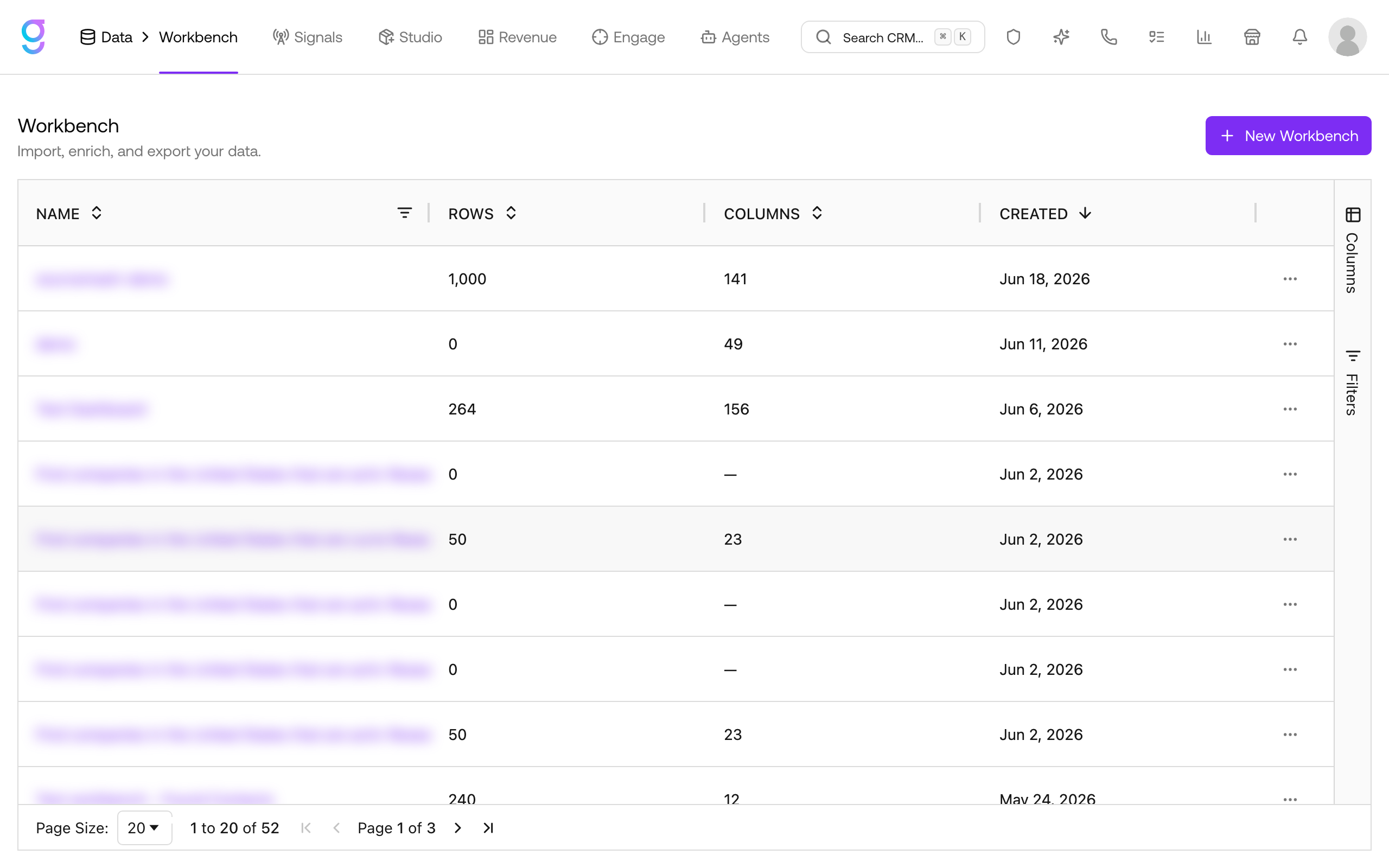
The workbench guides you through each stage. When you first create a workbench, you’ll see import options. Once data arrives, graph8 helps you extract and structure fields. From there, the full grid and enrichment tools become available.
Why Use Staging Workbench
Use the workbench when your data isn’t list-ready yet. If you already have clean, structured contacts in a list and just need to fill in missing fields, use Enrichment & Formulas directly.
Use the workbench when:
- You received a CSV or spreadsheet and need to clean it up before importing
- You’re pulling data from a CRM and want to enrich it before creating a list
- You have webhook or API data in raw JSON format that needs field extraction
- You want to combine, score, or transform data from multiple sources before outreach
- You need to preview enrichment results before committing data to your main lists
| Scenario | Use |
|---|---|
| Fill in missing emails on an existing contact list | Enrichment |
| Clean up a raw CSV and enrich it before creating a list | Staging Workbench |
| Add AI-generated columns to contacts already in a list | Enrichment |
| Import webhook data, extract fields, enrich, then export | Staging Workbench |
Import & Prepare Data
The workbench supports multiple ways to bring data in:
| Source | How It Works |
|---|---|
| CSV Upload | Drag and drop a file or browse to upload. Map columns on import. |
| Paste Data | Paste rows from a spreadsheet or CSV. graph8 auto-detects delimiters. |
| CRM Import | Connect Salesforce, HubSpot, Pipedrive, or Zoho and pull records directly. |
| Search Import | Pull contacts from graph8’s prospecting database into the workbench. |
| Webhook / JSON | Create a raw JSON column to receive payloads from external systems. Use column discovery to extract nested fields automatically. |
| Manual Entry | Add rows and fill in field columns by hand. |
Once data is in the grid, you can add enrichment columns (waterfall, AI, formula) using the same tools documented in Enrichment & Formulas. The difference is that everything happens in an isolated workspace; nothing touches your main lists until you explicitly export.
Export to a List
When your data is ready, click Map & Export to start the export wizard:
- Map fields: Match workbench columns to standard contact or company fields. graph8 suggests mappings automatically.
- Choose destination: Create a new list or add to an existing one.
- Configure enrichment: Optionally set up waterfall enrichment (email, phone, company data) to run automatically after export.
Related
- Workbench Pipelines →: Automate multi-step enrichment with visual pipelines
- Enrichment & Formulas →: Enrich contacts already in a list
- Import & Export →: Upload contacts or download lists
- Managing Lists →: Organize and filter your lists