Managing Lists
Lists are how you organize prospects in graph8. Every search result you save, every CSV you upload, and every audience you build lives as a list. You can also create an empty list and add records to it later.
Viewing Your Lists
Go to Data → Lists to see all your lists.
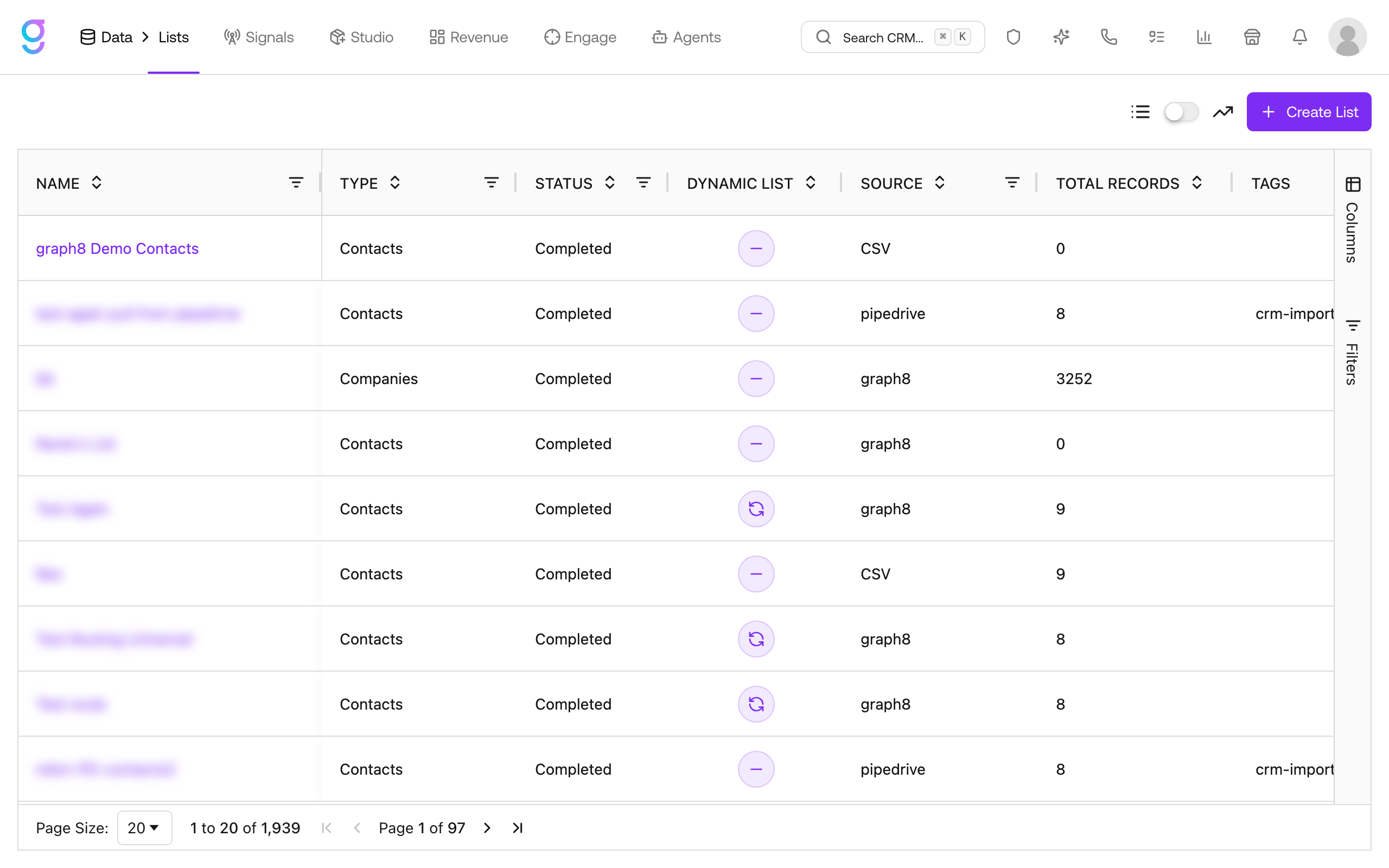
Each row shows:
- Name: the label you assigned
- Type: whether the list holds Contacts or Companies
- Status: processing state (e.g. Completed)
- Dynamic List: whether the list auto-updates from a saved filter
- Source: where the records came from (graph8, Visitor, an import, etc.)
- Total Records: number of records in the list
- Tags and Date Created
Creating a List
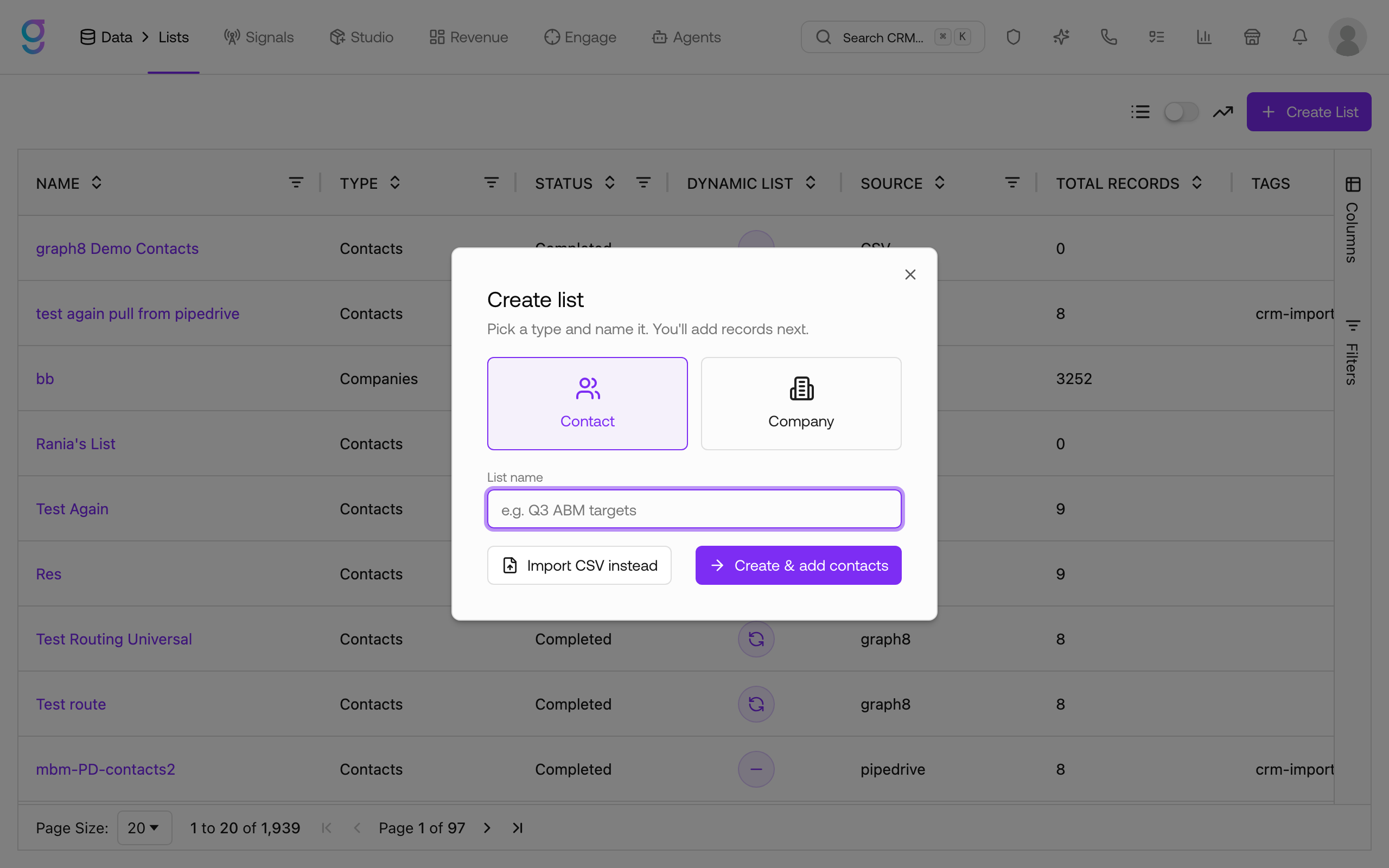
Click + Create List in the top-right. Pick whether the list holds Contacts or Companies, give it a name, then choose how to populate it.
Create an empty list
Name the list and click Create & add contacts. This creates the list immediately and drops you into it so you can add records by hand (Add Contact), from Search, or from a CSV. Use this when you want the list to exist first and fill it later.
Import from a CSV
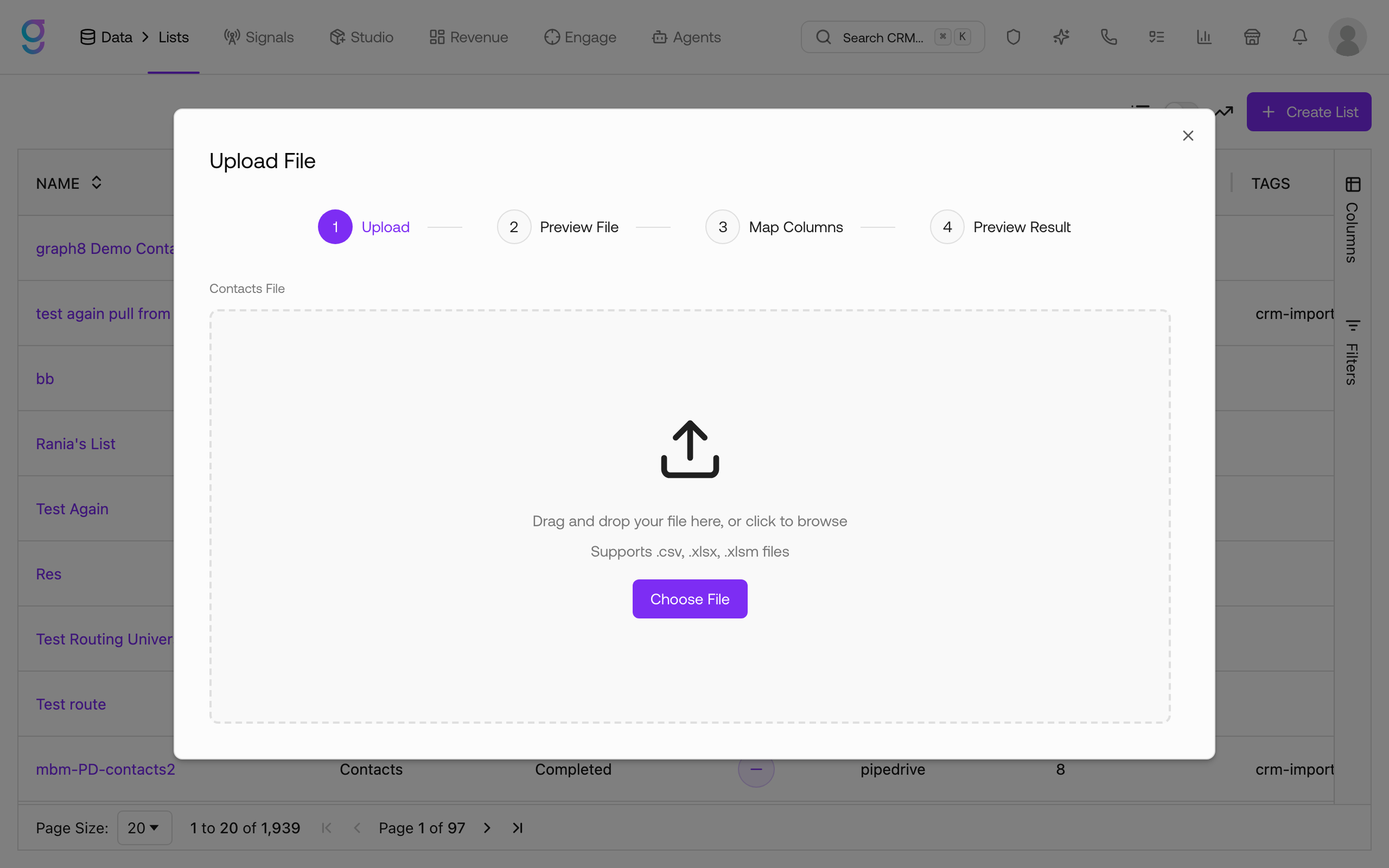
Name the list, then click Import CSV instead to open the upload wizard. It walks through four steps:
- Upload: drag and drop your file or click Choose File (supports
.csv,.xlsx, and.xlsm) - Preview File: confirm the rows were read correctly
- Map Columns: match your spreadsheet columns to graph8 fields
- Preview Result: review before the records are created
Create a list from Search
From Data → Search, run a search and save the results to a new (or existing) list. See Prospecting for the full search-to-list flow.
Inside a List
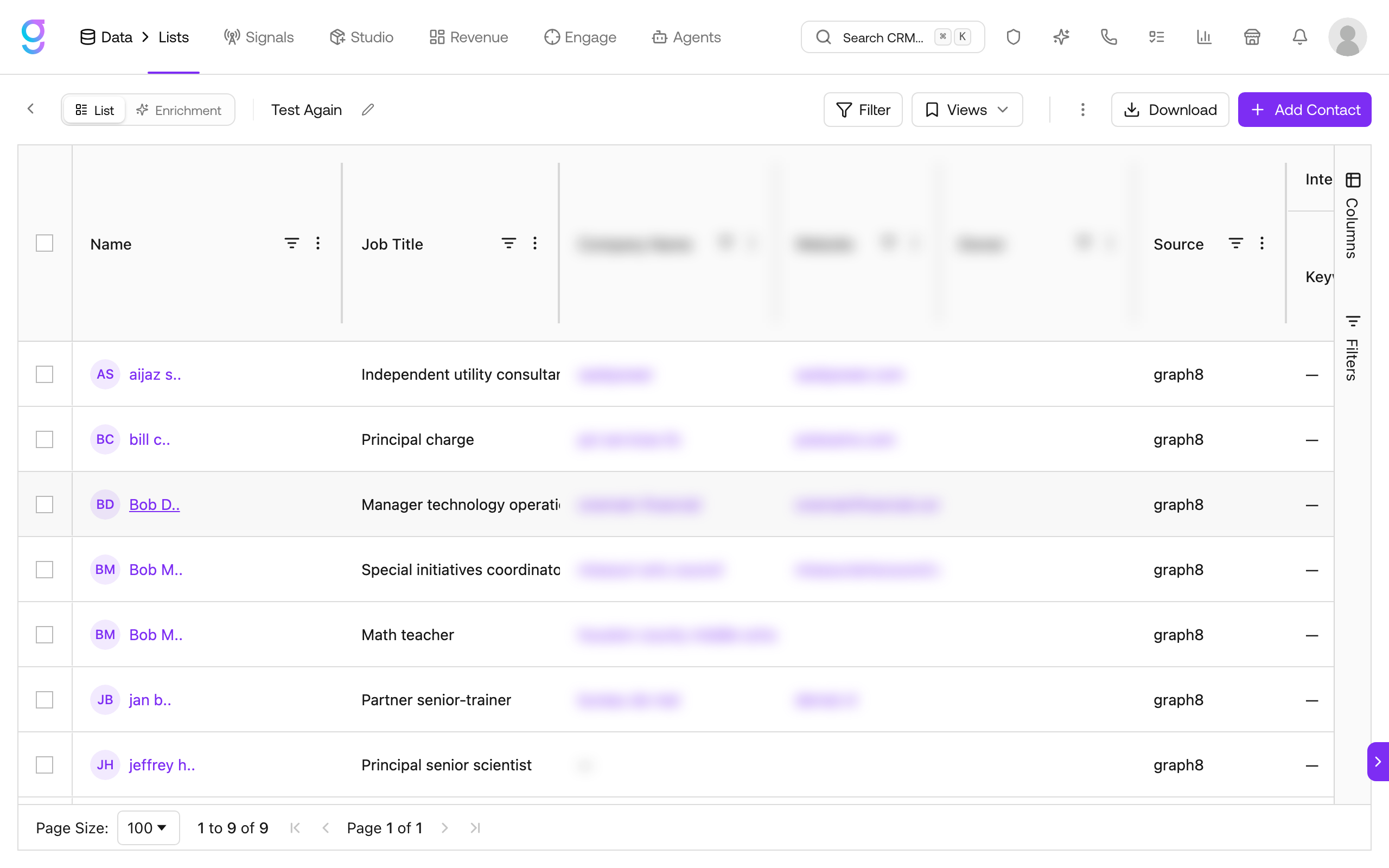
Open a list to see its records in a grid. The toolbar gives you List / Enrichment views, Filter, Views (saved filter views), Download, Add Contact, and a three-dot menu of bulk actions.
Filtering Contacts Within a List
| Filter Type | How It Works |
|---|---|
| Text search | Search by name, email, company, or title |
| Column filters | Filter any column: title contains “VP”, company size > 200, etc. |
| Sort | Sort by any column ascending or descending |
| Saved views | Save a filter combination as a reusable view from the Views menu |
Filters are additive; each one narrows the results further.
Bulk Actions
Select records (or use the header checkbox to select the page, then Select all N in this list), then open the three-dot (⋮) menu:
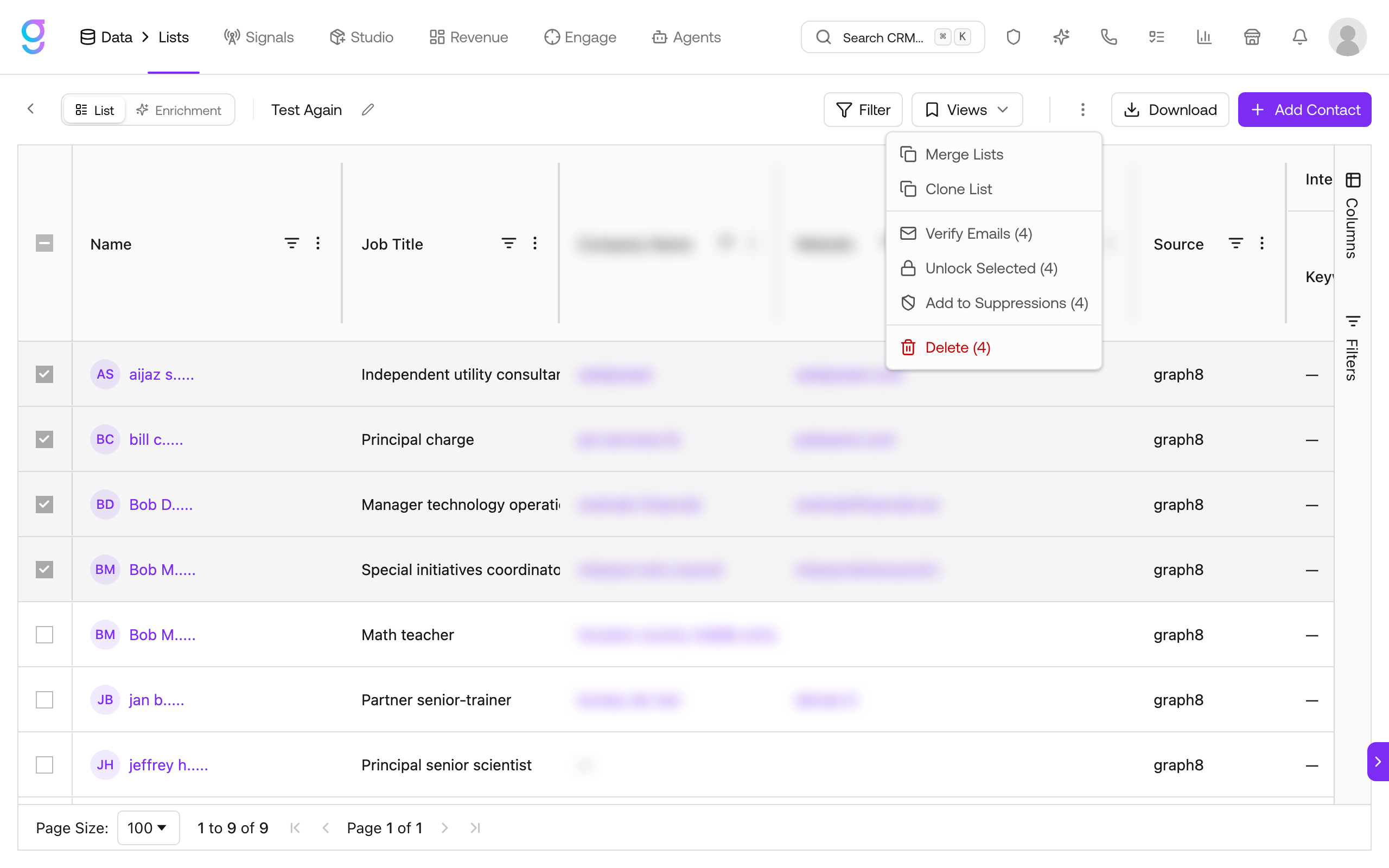
| Action | Description |
|---|---|
| Merge Lists | Combine this list with another |
| Clone List | Duplicate the list |
| Verify Emails | Run a fresh email-verification pass on the selected records |
| Unlock Selected | Reveal locked contact info for the selected records |
| Add to Suppressions | Exclude the selected contacts from outreach (see Suppressions) |
| Delete | Remove the selected records from the list |
To export, use the Download button in the toolbar; it downloads the visible columns (including custom enrichment and AI columns) as a CSV. Hide any columns you don’t need before exporting to control the output.
Apply to the Full List
When you select the page, a banner offers Select all N contacts in this list, so a bulk action can target every matching record, not just the rows currently loaded. Combine with filters first (for example, filter to VPs at 200+ employee companies, then select all and act) to bulk-act on large lists safely.
List Types
| Type | Description |
|---|---|
| Contact lists | Hold individual people (the most common list) |
| Company lists | Hold companies/accounts |
| Dynamic lists | Auto-updating lists driven by a saved filter; records that match are added automatically |
Picking Lists from Dropdowns
When adding contacts to a list (from prospecting, sequencer, or workflows), the list-picker dropdown supports infinite scroll and type-to-search, so orgs with hundreds of lists no longer hit a hard cap when picking the destination.
Deleting Lists
When you delete a list, it is removed from all selection dropdowns across the platform, so it will no longer appear when choosing lists for routing, sequencing, or filtering.
Next Steps
- Suppressions →: Exclude contacts from outreach across channels
- Prospecting →: Search the database to build new lists
- Enrichment & Formulas →: Waterfall providers, AI research, and formula columns
- Import & Export →: Upload contacts or download lists