Users
Invite, manage, and remove the users in your graph8 organization. The Users page lives under Settings → Organization → Users.
Users list
The Users page (its header reads Team Members) lists everyone in your organization. Use the column filters to find users quickly in larger teams.
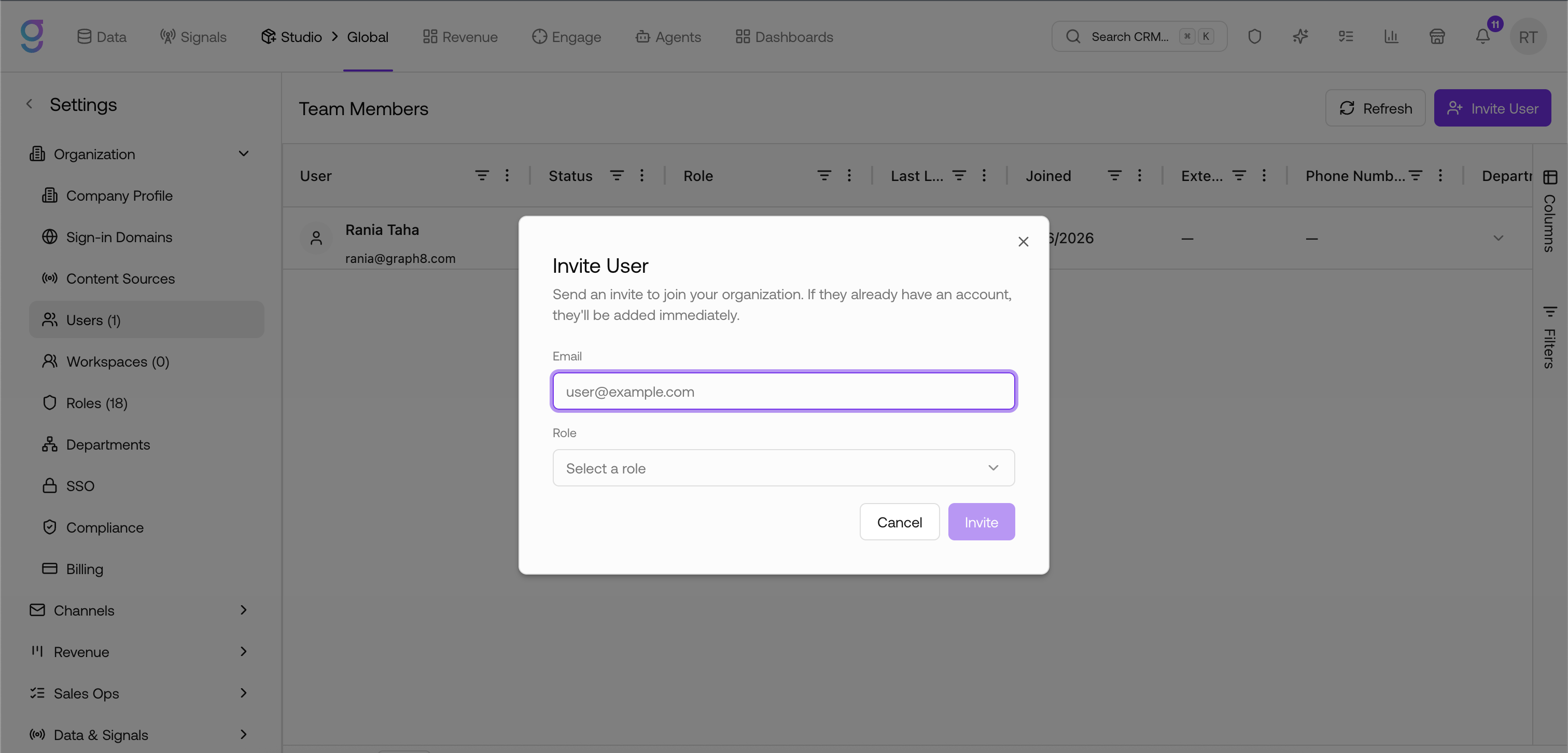
Each row shows:
- User - name and email
- Status - Active, or Invited for a pending invitation that hasn’t been accepted yet
- Role - the user’s assigned role (configurable - see Roles)
- Last Login - when they last logged in
- Joined - when they were added to the organization
- Extension, Phone Number, Department, Availability - dialer and routing details you can edit inline
- Actions - remove the user, or revoke a pending invite
Inviting users
- Go to Settings → Organization → Users
- Click Invite User
- Enter the user’s email
- Select a role
- Click Invite
If the person already has a graph8 account, they’re added to your organization immediately. Otherwise they receive an email invitation to create their account and join with the role you chose.
Invite one user at a time - each invite takes a single email and role.
Pending invitations
Invited users appear in the list with an Invited status until they accept. To cancel a pending invite, use the revoke action in that user’s row.
Seats & billing
Your plan determines how many users you can add. See Settings → Billing for your current usage and available seats.
Managing users
Change a user’s role
Click the Role dropdown in the user’s row and pick a new role. The change takes effect immediately. See Roles for what each role can access.
Set dialer & contact details
Click the Extension, Phone Number, Department, or Availability cell in a user’s row to edit it inline - press Enter to save or Esc to cancel. These feed the dialer and team routing.
Remove a user
- Click the remove (trash) icon in the user’s row
- Confirm in the Remove User dialog
Removing a user revokes their access to the organization. This can’t be undone.
Frequently Asked Questions
How do I add new users?
Open the Users tab at app.graph8.com/studio/settings?tab=users (Settings → Organization → Users), click Invite User, enter the person’s email, pick a role, and click Invite. If they already have a graph8 account they’re added to your organization immediately; otherwise they receive an email invitation. See Inviting users above for the full flow.
Can I invite more than one user at once?
Invites are sent one at a time - each invite takes a single email and role. Repeat the Invite User flow for each person.
What happens if an invited user doesn’t accept?
They stay in the list with an Invited status. You can revoke the pending invite from their row’s actions and re-invite if needed.
Where do I manage roles and permissions?
Roles are configured on the Settings → Organization → Roles page. See Roles.