LinkedIn Ads Setup
This guide walks through everything you need to run LinkedIn ads from graph8: preparing your LinkedIn ad account, connecting it, launching a campaign, and checking the results inside LinkedIn Campaign Manager.
Before You Start: LinkedIn Requirements
To launch LinkedIn campaigns from graph8 you need:
- A personal LinkedIn profile: Campaign Manager uses your normal LinkedIn login
- A LinkedIn Company Page you admin (or the ability to create one during setup)
- A Campaign Manager ad account with billing set up
- The right role on the ad account: to let graph8 create campaigns, the LinkedIn user who connects must have the Campaign Manager, Account Manager, or Billing Admin role on the ad account. The Viewer role is read-only and cannot launch ads, even after connecting
Create a LinkedIn Ad Account
If you do not have an ad account yet:
- Go to linkedin.com/campaignmanager and sign in with your LinkedIn credentials
- New advertisers see a welcome screen for creating an ad account. LinkedIn pre-fills the account name, associated Company Page, and currency
- Edit the Account name if needed
- Click Change next to the suggested Page to pick a different Company Page, or Add new to create one
- Click Change next to the currency if needed
- Agree to the LinkedIn Ads Agreement and click Create account
Add Billing
Only the ad account’s billing admin can add payment details:
- In Campaign Manager, open your ad account and go to Account settings → Billing
- On the Billing setup tab, find How you’ll pay and click Add payment details
- Enter your credit card details and click Save and continue
LinkedIn may place a temporary authorization hold that clears within 5 to 7 business days.
Add a Teammate to the Ad Account (Optional)
If the person connecting graph8 is not on the ad account yet, an account manager can add them: Account Settings → Manage access → Add user, enter their name or profile URL, pick a role (Campaign Manager or higher), and click Add.
Connect LinkedIn to graph8
- Go to Studio → Content → Ads → Campaigns
- Click Create Campaign
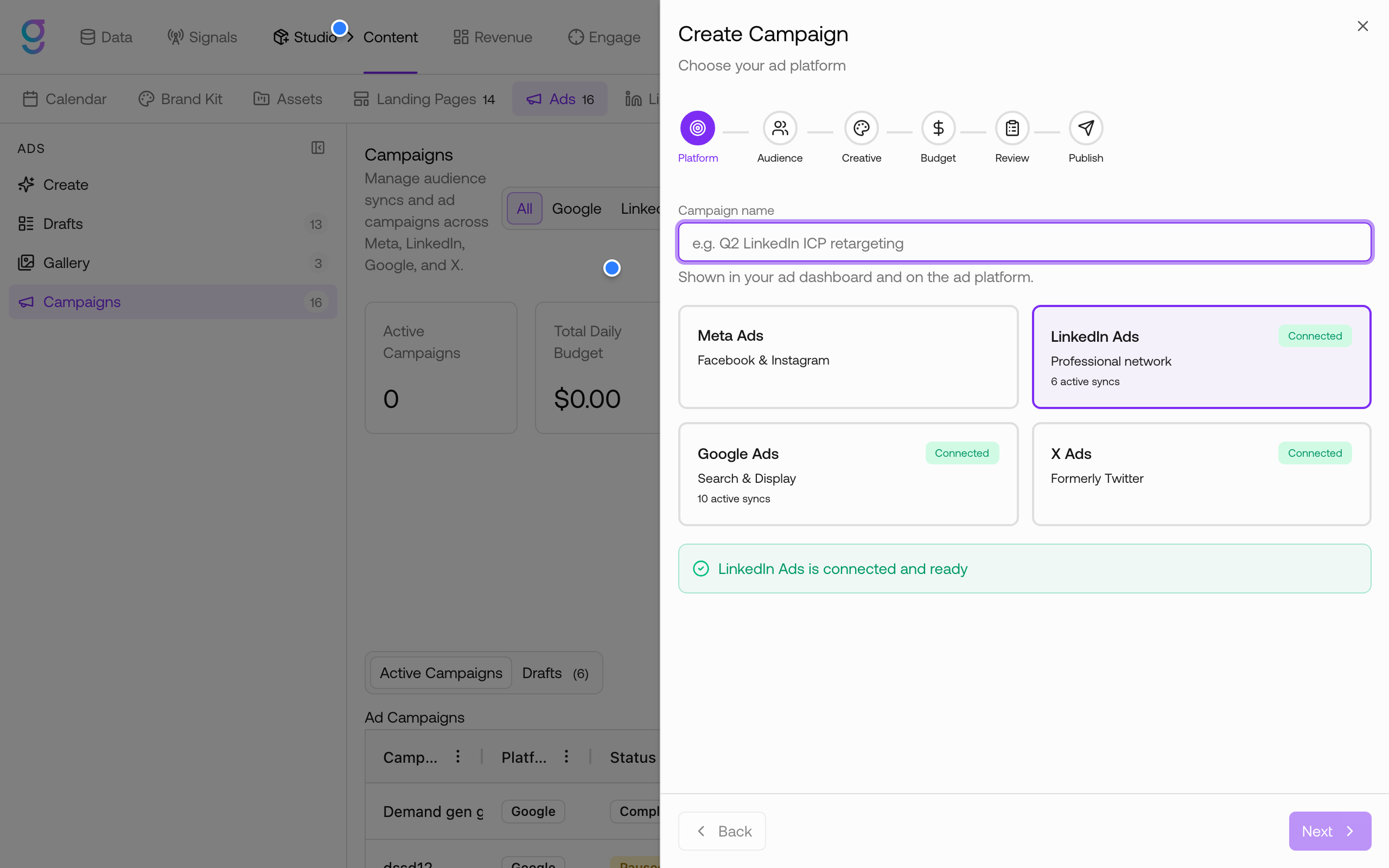
- On the Platform step, select the LinkedIn Ads card
- If the account is not connected yet, click Connect. A LinkedIn authorization window opens: sign in and approve the requested permissions
- Once authorized, the card shows a green Connected badge and the message “LinkedIn Ads is connected and ready”
Design Your LinkedIn Ad
Create the ad creative first in Studio → Content → Ads → Create (see the Ads guide). LinkedIn supports four formats:
| Format | Aspect ratio | Recommended size |
|---|---|---|
| Single Image | 1.91:1 | 1200 × 628 |
| Square | 1:1 | 1200 × 1200 |
| Vertical | 4:5 | 720 × 900 |
| Carousel Card | 1:1 | 1080 × 1080 |
graph8 keeps the headline within LinkedIn’s 70-character limit (longer headlines get truncated in the feed with no way to expand) and allows intro text up to 600 characters. LinkedIn shows roughly the first 150 characters in the feed before the “see more” cutoff, so put the hook up front.
When the creative is done, click Finalize → Gallery so the campaign wizard can pick it up.
Launch a LinkedIn Campaign
Go to Studio → Content → Ads → Campaigns and click Create Campaign. The wizard has six steps.
1. Platform
Enter a Campaign name (shown in your graph8 dashboard and inside LinkedIn) and select LinkedIn Ads.
2. Audience
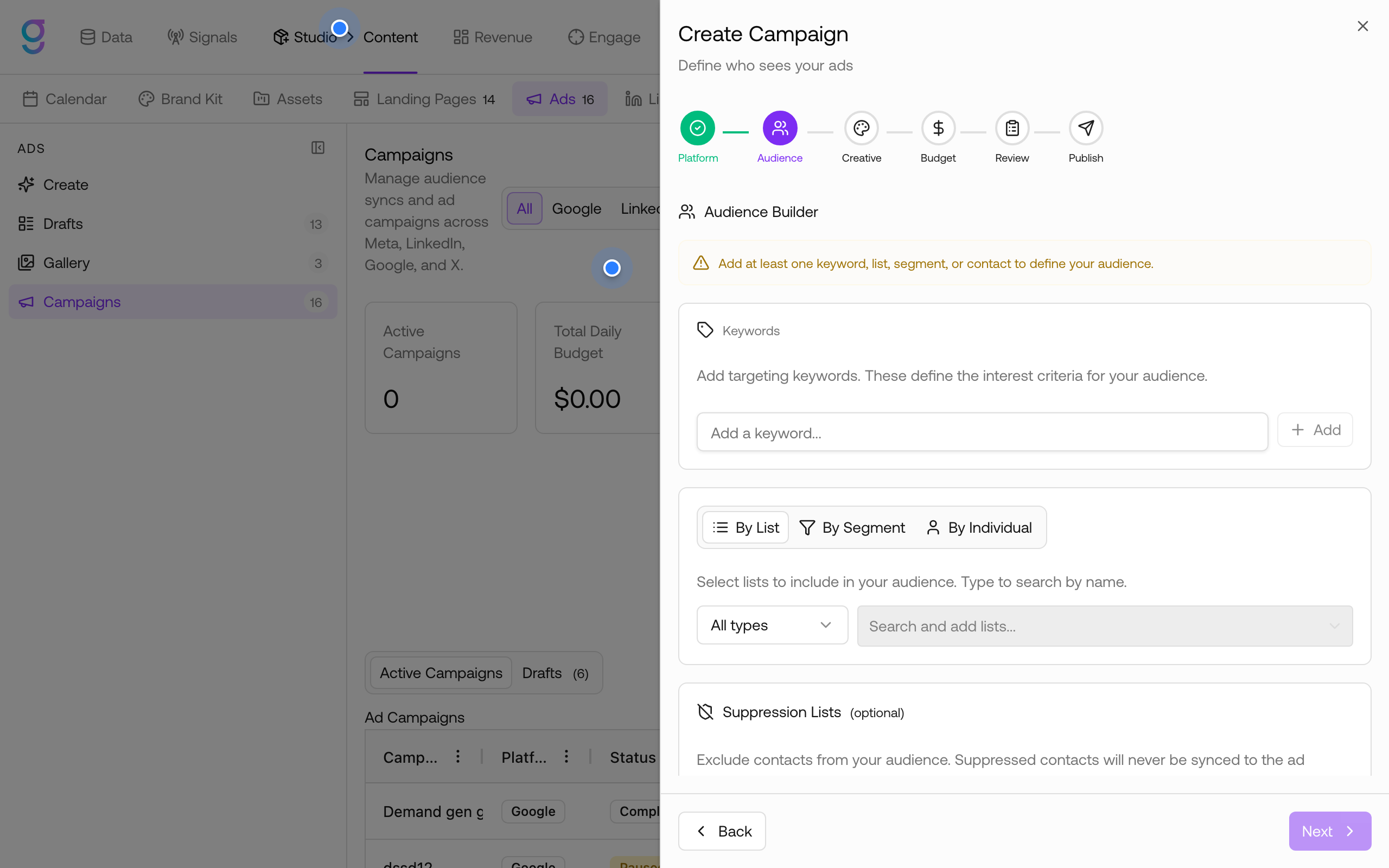
Define who sees your ads with the Audience Builder:
- Keywords: add targeting keywords that define interest criteria
- By List / By Segment / By Individual: include contacts from your graph8 lists, segments, or hand-picked people
- Suppression Lists (optional): exclude contacts; suppressed contacts are never synced to the ad platform
Add at least one keyword, list, segment, or contact to continue. graph8 syncs matched contacts to LinkedIn as a Matched Audience using securely hashed identifiers.
3. Creative
Design the ad content:
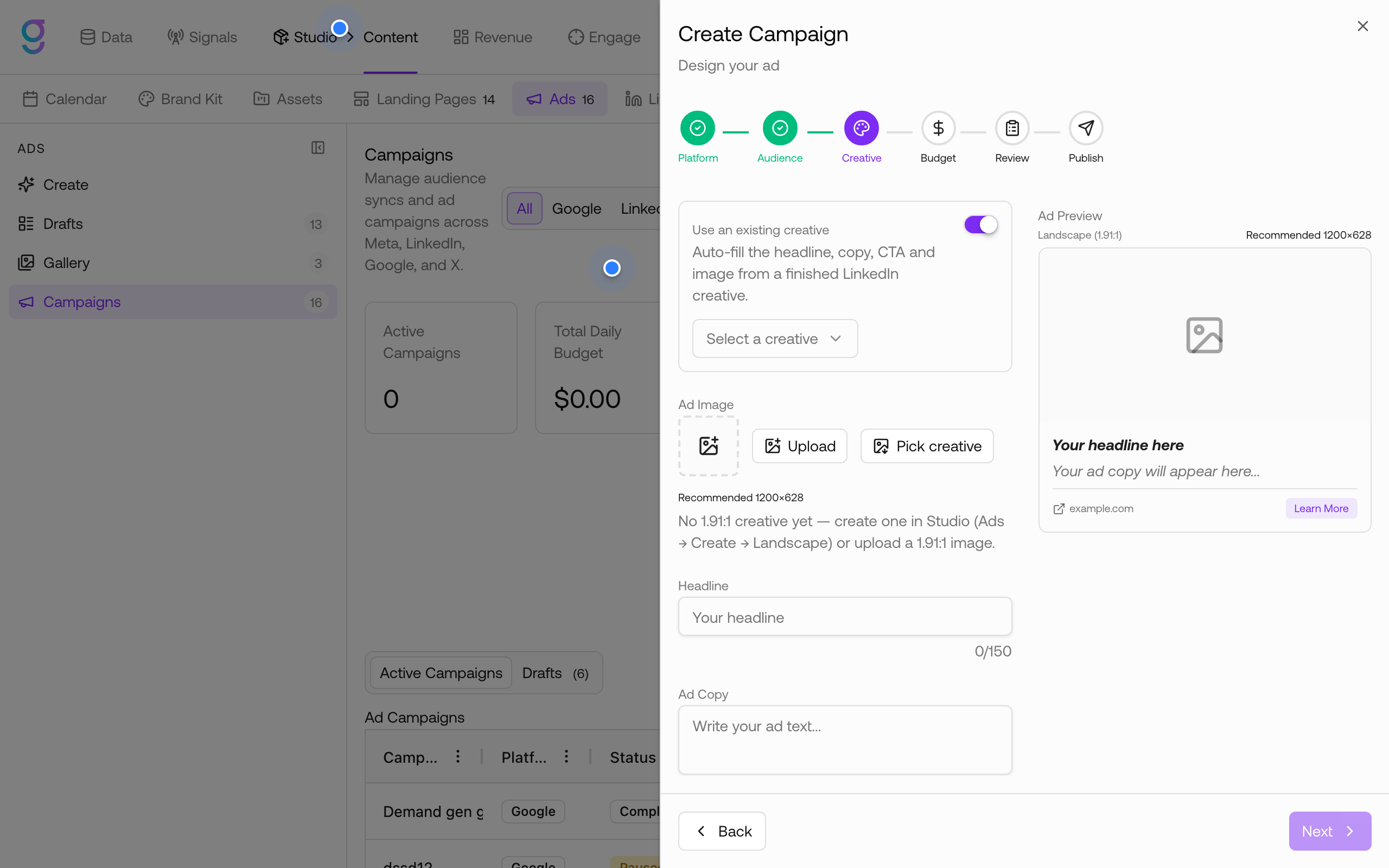
- Toggle Use an existing creative to auto-fill the headline, copy, call to action, and image from a finished LinkedIn creative in your gallery
- Or fill the fields manually: Ad Image (upload or pick a creative), Headline, Ad Copy, call to action, and destination URL
The live Ad Preview on the right shows how the ad renders.
4. Budget
Set your spend:
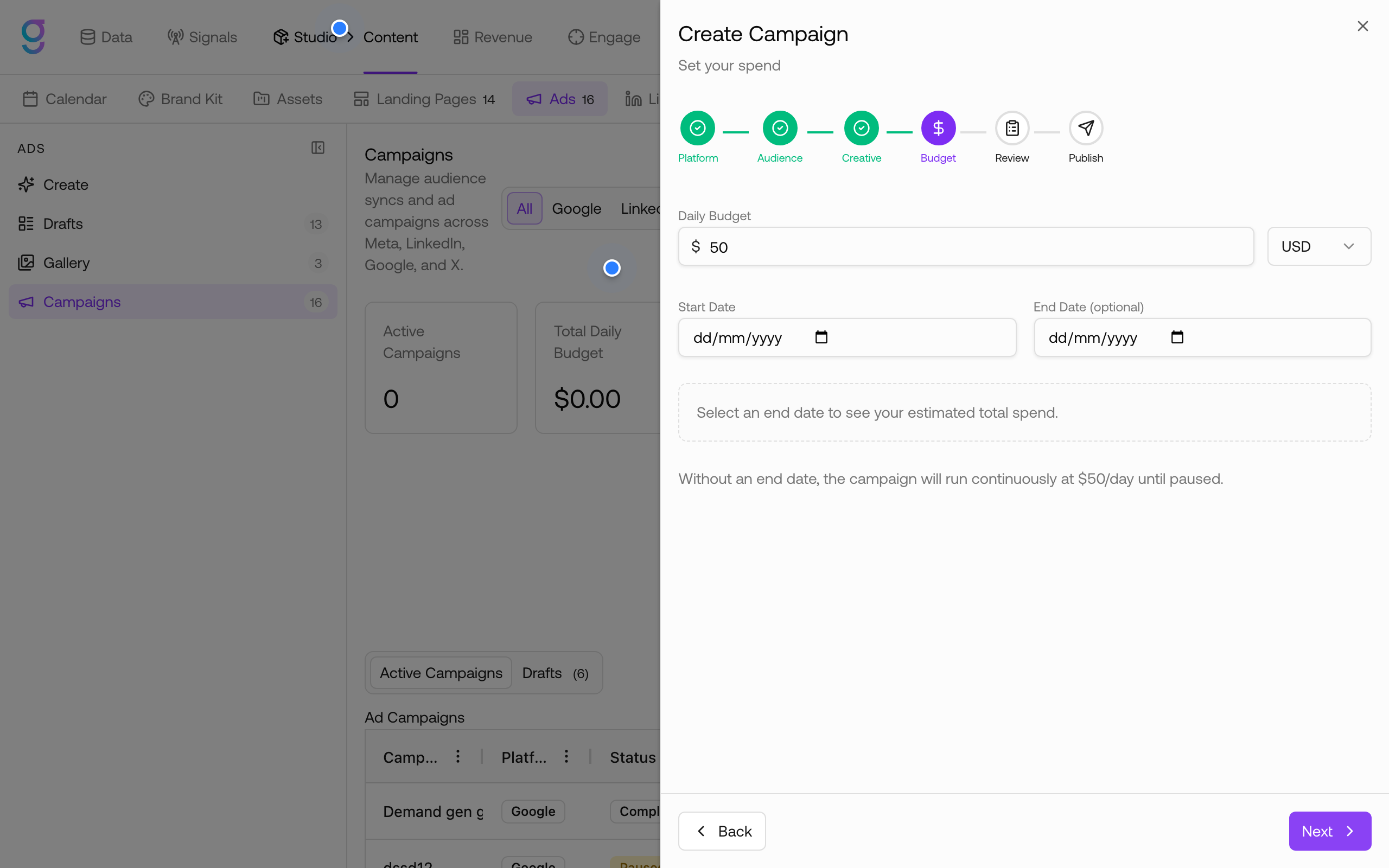
- Daily Budget and currency (USD, EUR, or GBP)
- Start Date and optional End Date
Without an end date, the campaign runs continuously at your daily budget until paused.
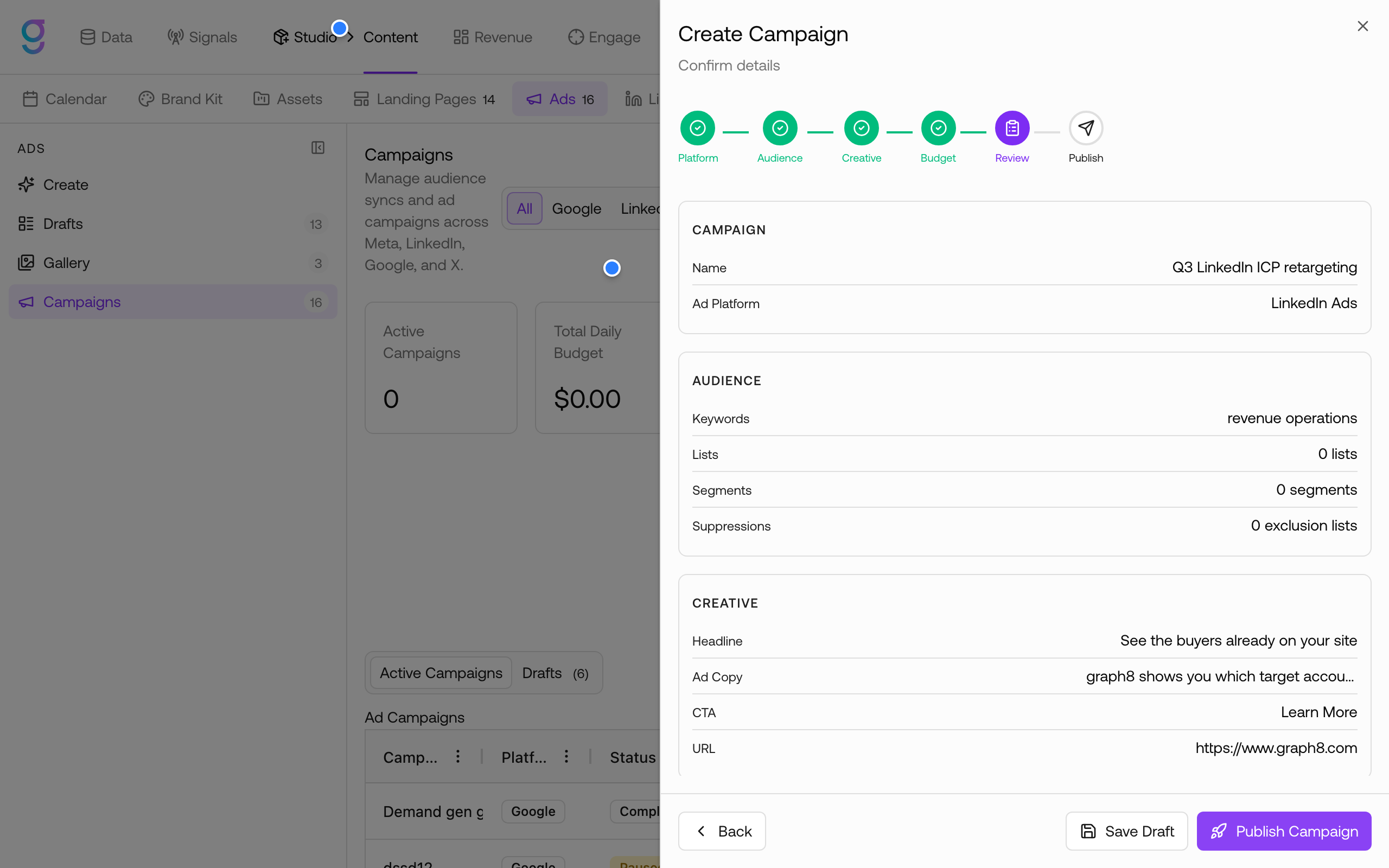
5. Review
Confirm the summary of campaign, audience, creative, and budget. From here you can:
- Save Draft: store everything without launching (needs Create permission); resume later from the Campaigns tab’s Drafts list
- Publish Campaign: sync the audience and launch the ads on LinkedIn (needs Launch permission)
6. Publish
graph8 creates the campaign in your LinkedIn ad account and reports the result. The new campaign appears in the Active Campaigns table with its status, budget, spend, and performance metrics.
Check Your Ads in LinkedIn
After publishing, verify the campaign inside LinkedIn:
- Go to linkedin.com/campaignmanager and select your ad account
- LinkedIn organizes ads as Ad account → Campaign → Ad set → Ad (LinkedIn renamed this hierarchy in late 2025; older help articles may still say “campaign groups”)
- Find your campaign by the name you set in graph8, then open the Ads tab to see each ad’s status
Key LinkedIn ad statuses:
| Status | Meaning |
|---|---|
| In Review | LinkedIn is reviewing the ad; it starts running if approved |
| Active | Reviewed and approved; runs once the start date is reached |
| Paused | Not delivering; resume from graph8 or LinkedIn |
| Rejected | The ad does not meet LinkedIn’s advertising guidelines and cannot run |
Manage the Campaign from graph8
The Active Campaigns table in Studio → Content → Ads → Campaigns shows each campaign’s platform status (Active, Paused, Pending, Under review, Rejected, Completed, or Failed) alongside budget, spend, impressions, clicks, and CTR. Row actions let you Edit, Pause, Resume, or Delete a campaign (Launch permission required).
Use the Refresh button to pull the latest status and metrics from LinkedIn.